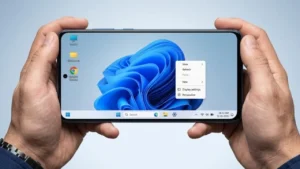
Android phones and tablets are designed around a mobile interface, but that doesn’t mean you have to stick with the usual home screen.
If you like the look of a Windows desktop, you can give your Android device a completely different appearance by using a PC-style launcher. These launchers can add a desktop-like taskbar, Start menu, shortcuts and other elements that make Android feel more familiar to someone who regularly uses a computer.
One such option is HyperDroid PC Launcher.
However, there is one important thing to clear up first: HyperDroid does not install Windows 11 on your phone. It continues to run Android underneath while changing the interface to give you a Windows-inspired experience.
You also don’t need to root your device just to use a launcher.
Also read: Nocebo Launcher: A Fresh Way to Customize Your Android Home Screen
What Is HyperDroid PC Launcher?
HyperDroid PC Launcher is an Android launcher that replaces the standard Android home screen with a desktop-style interface.
Instead of opening your phone to the familiar collection of app icons and widgets, you get an environment designed to resemble a computer desktop.
Depending on the device and launcher version, the experience can include features such as:
- Desktop-style taskbar
- Start menu
- Desktop shortcuts
- File browsing
- Window-style app management
- Website shortcuts
- Desktop-oriented navigation
- Home screen customization
The experience can be particularly interesting on Android tablets, where the larger display gives these desktop elements more room.
How to Turn Your Android Device Into a PC-Style Desktop
Getting started is relatively simple because the launcher works as an Android home application.
1. Install HyperDroid PC Launcher
Start by opening the Google Play Store on your Android phone or tablet.
Search for HyperDroid PC Launcher, check that you have the correct app, and install it.
Once installation is complete, open the launcher and follow the initial setup instructions.
Your normal Android home screen should then be replaced by the launcher’s desktop-style interface.
2. Make It Your Default Home App
If you want the PC-style interface to appear every time you press the Home button, you’ll need to set HyperDroid as your default launcher.
Depending on your phone, this option may be found under:
Settings → Apps → Default Apps → Home App
The wording can be different on Samsung, Xiaomi, OnePlus, Motorola and other Android devices.
Select HyperDroid as the Home app when the option is available.
After that, pressing the Home button should take you directly to the new desktop interface.
Get Familiar With the Windows-Style Desktop
Once you’ve finished setting it up, the first thing you’ll probably notice is how different the home screen looks.
A taskbar may appear along the bottom, while a Start-style menu provides another way to access installed applications.
Instead of scrolling through conventional Android home screens, you can use the desktop-style layout to launch apps and access shortcuts.
The exact appearance can vary depending on your device and the version of the launcher.
Put Your Favorite Apps on the Desktop
One advantage of a desktop-style launcher is being able to keep frequently used apps directly on the desktop.
If HyperDroid provides the option, press and hold an app icon and look for an option such as Add to Desktop.
You can then arrange shortcuts for the apps you use most often.
For example, you could keep your browser, YouTube, file manager, Gmail or other frequently used apps directly on the desktop instead of searching for them each time.
Keep Frequently Used Apps on the Taskbar
The taskbar can also be useful for apps you open repeatedly.
Depending on the launcher version, you may be able to press and hold an app and choose an option similar to Pin to Taskbar.
Pinned apps remain easily accessible while you’re navigating the desktop.
This can make a bigger Android screen feel more convenient, especially when you’re using the device with a mouse or keyboard.
Browse Files Like You Would on a PC
A desktop-inspired interface feels more complete when you have a file browser available.
HyperDroid may provide a file-explorer-style interface that lets you navigate folders and files stored on the Android device.
You may be able to access things such as:
- Downloads
- Pictures
- Documents
- Videos
- Other stored files
However, the launcher doesn’t bypass Android’s storage restrictions. What it can access still depends on the permissions provided by Android and your device.
Use Multiple Apps on a Larger Screen
Desktop-style interfaces can be more useful when you have enough screen space.
On supported devices and Android versions, you may be able to work with multiple apps through a window-like interface or switch between applications using the desktop and taskbar.
For example, you could have a browser open while checking files or using another Android application.
Don’t expect every Android app to behave exactly like a Windows desktop program, though. Multitasking capabilities depend on the Android version, device and launcher implementation.
Make Web Browsing Feel More Like a PC
You can also combine the launcher with your Android browser to create a more desktop-oriented setup.
Services such as Gmail, Canva, YouTube Studio and other websites can be opened through a browser. If your browser supports Desktop site, enabling it may make supported websites use a layout closer to their computer versions.
This can be particularly useful on tablets.
But remember that enabling desktop mode doesn’t turn a website into a Windows application. You’re still using the Android version of your browser.
Create Shortcuts for Your Favorite Websites
If you regularly visit the same websites, you don’t always have to type their addresses manually.
Open the website in your browser and check the browser menu for an option such as Add to Home screen or a similar shortcut option.
You could create shortcuts for websites you frequently use, such as:
- YouTube Studio
- Canva
- Gmail
- Google Drive
- Other work or productivity websites
Depending on the browser and website, the available shortcut options may differ.
Customize the Desktop Appearance
The default setup may not be perfect for every phone or tablet.
Take some time to explore the launcher’s customization options. Depending on what’s available, you may be able to adjust:
- Wallpaper
- Theme
- Colors
- Icons
- Desktop arrangement
- Start menu appearance
- Display scaling
A clean wallpaper combined with only the shortcuts you actually use can make the desktop look much less cluttered.
Adjust Scaling for a Better Layout
Desktop-style interfaces can sometimes make icons or text appear larger than expected.
If HyperDroid offers display or scaling controls, experiment with them until you find a comfortable setup.
A smaller scale can fit more shortcuts on the screen, while a larger scale can make buttons and text easier to use.
The ideal setting depends on the screen size and resolution of your Android device.
Make the Experience Better With a Mouse and Keyboard
You don’t need extra accessories to use HyperDroid, but they can make a major difference.
Use a Bluetooth Mouse
A mouse makes it easier to:
- Select icons
- Drag items
- Navigate menus
- Work with desktop-style interfaces
Add a Keyboard
A Bluetooth keyboard can make an Android tablet much more useful for:
- Writing emails
- Browsing
- Documents
- Web searches
- Online work
Use a Tablet
A large Android tablet generally makes more sense for this setup than a small phone because there’s more room for the taskbar, shortcuts and multiple applications.
With a keyboard and mouse, the result can feel surprisingly close to a lightweight laptop-style setup for basic tasks.
What Can You Actually Do With This Setup?
A Windows-inspired Android desktop can be useful for everyday activities such as:
- Browsing the web
- Managing files
- Opening Android apps
- Using online services
- Switching between supported apps
- Working with a keyboard and mouse
- Organizing shortcuts
- Customizing the Android interface
It can also give an older tablet a new purpose if the hardware is still capable of handling everyday Android applications.
Does This Really Install Windows 11?
No.
This is the most important limitation to understand.
HyperDroid is an Android launcher, not a Windows operating system.
Your phone or tablet continues to run Android. The launcher simply changes the interface and adds desktop-inspired elements on top of it.
That means you cannot expect it to provide the full Windows environment.
For example, downloading a Windows .exe file does not mean you can automatically install and run it through HyperDroid.
You will continue to use Android apps and Android-compatible browsers.
Does It Need Root Access?
Normally, no.
A launcher can be installed like a regular Android application and selected as the device’s default Home app.
You don’t generally need to root the phone, unlock the bootloader or modify system files simply to use a desktop launcher.
However, individual features can still depend on your phone’s Android version, hardware and permissions.
Can You Return to the Normal Android Home Screen?
Yes.
If you decide that the desktop experience isn’t for you, you can switch back to your previous launcher.
Look for a setting such as:
Settings → Apps → Default Apps → Home App
Then select your phone’s original launcher or another launcher you’ve installed.
The exact location can vary depending on the manufacturer.
Is a Desktop Launcher Better on a Tablet?
For this particular type of customization, a tablet can make more sense.
A phone’s smaller screen can make a desktop interface feel crowded, while a larger tablet display gives the taskbar, shortcuts and windows more space.
If you already have an Android tablet and don’t use it much, a desktop-style launcher can be an interesting way to change how you use it.
Things to Check Before Installing
Before making HyperDroid your everyday launcher, check a few things:
- Make sure it supports your Android version.
- Review the permissions it requests.
- Test the launcher before making it your permanent default.
- Check how smoothly animations work.
- Monitor battery usage.
- Look at recent app updates and developer information.
- Make sure you know how to switch back to your original launcher.
This is especially important if you’re installing a third-party launcher on an older device.
Optional App Link
If you want to try the desktop-style interface, you can check the HyperDroid PC Launcher listing on Google Play:
HyperDroid PC Launcher on Google Play
Availability and the exact app listing can change, so check the developer information before installing.
Also read: Lens Launcher: The Smart Android Launcher That Lets You Find Any App on One Screen
Final Thoughts
HyperDroid PC Launcher is an interesting way to give an Android phone or tablet a Windows-inspired desktop look without actually replacing Android.
The biggest appeal is the change in interface. A taskbar, Start-style menu, desktop shortcuts, file browsing and other desktop-inspired elements can make a large Android screen feel much closer to a traditional computer.
Just keep expectations realistic. This isn’t Windows 11 running on your phone, and it doesn’t turn Android apps into native Windows programs.
For the best experience, try it on a larger Android tablet and pair it with a Bluetooth keyboard and mouse. If you enjoy experimenting with your device’s interface, it can be a fun way to make Android feel completely different.