The Android home screen is something most of us see countless times every day. After using the same icons, app drawer and layout for months, even a good-looking phone can start to feel a little repetitive.
That is where third-party launchers come in. They can completely change the way your home screen looks and, in some cases, even change how you interact with your apps.
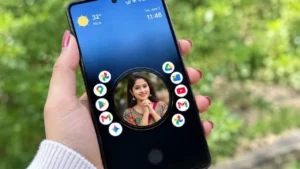
Nocebo Launcher takes a different approach to Android customization. Instead of sticking to the familiar rows-and-columns layout, it uses a more dynamic interface that gives the home screen a noticeably different feel.
If you like experimenting with your phone’s appearance and want something beyond the usual launcher experience, Nocebo Launcher is worth checking out.
Also read: Rolling Icons – App and Photo: Make Your Android Home Screen Fun and Interactive
What Is Nocebo Launcher?
Nocebo Launcher is a third-party Android launcher that replaces the standard home screen interface on your smartphone.
Once installed and set as the default launcher, it changes the way apps are displayed and how you move around the home screen. Rather than relying entirely on the conventional grid of fixed icons, Nocebo uses a more dynamic design.
The result is a home screen that feels less like the standard Android interface and more like a personalized environment.
For users who enjoy changing their phone’s look regularly, that difference can be enough to make everyday interaction feel new again.
Nocebo Launcher’s Key Features
1. A Dynamic Spinning Interface
The most distinctive part of Nocebo Launcher is its spinning-style interface.
Instead of simply placing apps into fixed rows and columns, the launcher uses movement as part of the navigation experience. This gives the home screen a more interactive appearance and separates it from the typical Android launcher design.
It is particularly interesting for users who find conventional icon grids too predictable.
2. Plenty of Customization Options
Customization is one of the main reasons people switch to third-party launchers, and Nocebo Launcher is built around that idea.
Users can personalize the appearance of their home screen and experiment with different layouts and visual styles. Whether you prefer something simple or want a more distinctive setup, the launcher gives you room to create an interface that feels more personal.
The exact options available can depend on the version of the launcher and your device.
3. A More Flexible Home Screen
The home screen doesn’t have to feel like a collection of icons permanently locked into the same positions.
Nocebo Launcher uses a more flexible layout to make the interface feel dynamic while you’re navigating through your apps. This gives the phone a different character compared with the standard launcher that came installed on the device.
For people who enjoy tweaking small details of their smartphone, this can make customization more interesting.
4. Navigation That Feels Different
Changing a wallpaper or installing a new icon pack can make your phone look different, but the basic way you use it usually remains unchanged.
Nocebo Launcher takes the customization idea further by changing the navigation experience itself.
That means the difference isn’t limited to how your icons look. The way you move around your home screen also becomes part of the new experience.
It may take a little time to get used to, but that’s also what makes the launcher interesting.
Who Is Nocebo Launcher For?
Nocebo Launcher is mainly aimed at Android users who like experimenting with their smartphones.
It could be worth trying if you:
- Enjoy customizing your Android phone.
- Want something beyond the standard app grid.
- Like unusual or interactive home screen designs.
- Prefer experimenting with different navigation styles.
- Want your phone to look different from other Android devices.
- Enjoy minimalist or modern interface designs.
On the other hand, if you already like your phone’s default launcher and prefer familiar navigation, there may not be much reason to switch.
Why Use a Custom Android Launcher?
A launcher can have a bigger impact on your phone than simply changing its wallpaper.
Depending on the launcher, you can reorganize apps, change the appearance of the home screen, use gestures, adjust layouts and create a setup around the way you actually use your phone.
For example, frequently used apps can be made easier to reach, while less important apps can be moved out of the way.
This is where third-party launchers can be useful: they give you more control over an interface that you normally use every day.
However, appearance shouldn’t be the only consideration. Performance, privacy and ease of use are equally important.
How Is the Performance?
Before completely replacing your default launcher, it is worth spending some time with Nocebo Launcher.
Pay attention to how quickly the home screen responds, whether animations remain smooth and how quickly apps open after switching between screens.
Things can also vary from one Android phone to another. A launcher that runs smoothly on a newer device may feel different on older hardware.
If you notice delays, animation stutters or unusual battery drain, you may want to reconsider keeping it as your permanent launcher.
Check Permissions Before Using It
A launcher interacts closely with your phone’s home screen, so it may require certain permissions or system access to provide its features.
Still, you should always review the permissions requested by any third-party app before granting them.
If a permission doesn’t seem connected to what the launcher is supposed to do, take a closer look at the app’s privacy information and developer details.
It is also safer to download the launcher through a trusted source and check recent user feedback and update information before installing it.
Can Nocebo Launcher Replace Your Default Launcher?
Yes, a third-party launcher can be used as the default home screen on Android if your device supports the required launcher settings.
Whether you actually want to keep Nocebo as your default is a different question.
The launcher has a noticeably different approach to navigation, so users accustomed to a traditional Android grid may need some time to adjust.
Rather than making an immediate permanent switch, use it for a few days. That should give you enough time to decide whether the new interface feels comfortable during normal daily use.
Things to Check Before Installing Nocebo Launcher
Before making Nocebo Launcher your everyday home screen, keep a few things in mind:
- Check whether it supports your Android version.
- Look through its available customization settings.
- Test how smoothly the animations work.
- Keep an eye on battery consumption.
- Review its requested permissions.
- Check the developer information and recent updates.
- Make sure you know how to return to your phone’s default launcher.
These simple checks can save you from an inconvenient setup later.
What Makes Nocebo Launcher Different?
The Android launcher space already has plenty of options that focus on icon packs, wallpapers, widgets and minimal layouts.
Nocebo Launcher takes a slightly different route by making the navigation style itself part of the customization.
Its dynamic interface gives the home screen a more animated appearance instead of simply rearranging familiar Android elements.
That makes it particularly interesting for people who have already tried traditional launchers and want something that feels noticeably different.
Optional: If you want to try Nocebo Launcher, you can find it on the Google Play Store.
Google Play Store app link
Final Thoughts
Nocebo Launcher is an interesting alternative for Android users who are bored with the usual home screen experience.
Its dynamic spinning interface, flexible layout and customization options give the phone a different personality without requiring you to buy new hardware.
It may take some time to become comfortable with the unusual navigation style, so it is worth testing the launcher before deciding whether to keep it as your default.
As with any third-party Android app, compatibility, performance and privacy should also be considered before making the switch.
If your goal is simply to make your Android phone look a little different, there are plenty of options available. But if you want to change the way your home screen actually feels to use, Nocebo Launcher offers a more unusual approach worth exploring.
Also read: Refresh Your Android Volume Controls With NoVolume: A Minimalist Alternative to the Default Slider