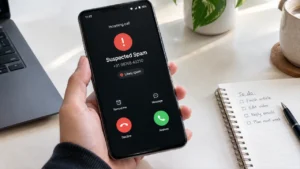
Getting repeated spam calls on your Android phone can quickly become annoying. Whether it is promotional calls, fake offers, robocalls or suspicious calls pretending to be from a bank, most people simply want them to stop.
The good thing is that you do not always need to install another call-blocking app.
Android and the Google Phone app already offer several tools that can help identify, block and report unwanted calls. Some newer Android devices also have additional scam protection features, depending on the phone and region.
Here is how to reduce spam calls on your Android phone without installing an extra app.
Also read: How to Check Which Apps Are Using the Most Mobile Data on Your Android Phone
1. Turn On Spam Call Protection
If you use the Google Phone app, you may have access to its built-in spam protection.
To check it:
- Open the Phone app.
- Tap the three-dot menu in the top-right corner.
- Open Settings.
- Tap Caller ID & spam.
- Turn on See caller ID & spam.
- If available, turn on Filter spam calls.
The exact options can vary between Android phones.
When spam protection is available, your phone can identify calls that may be unwanted and provide a warning before you answer.
2. Block a Spam Number After a Call
If a particular number keeps calling you, you can block it directly from your call history.
Open the Phone app and go to Recents.
Then:
- Find the unwanted number.
- Tap the number or contact.
- Choose Block or Block/report spam.
- Confirm the action.
Once blocked, future calls from that number should no longer reach you normally.
This is especially useful when the same number repeatedly calls after you have already ignored it.
3. Report Spam Calls
Blocking a number prevents that particular caller from contacting you, but reporting it can also help identify the number as spam.
If your Phone app shows Report spam, use that option when you are confident the call is unwanted.
This is better than simply deleting the call from your history because reporting provides information that can be used by the spam-detection system.
4. Do Not Call Back Unknown Numbers
One of the easiest mistakes to make after receiving a suspicious call is calling the number back immediately.
If you do not recognize the caller, avoid returning the call unless you have a genuine reason to do so.
This is particularly important when the caller:
- Claims there is an urgent problem with your bank account
- Says your payment has failed
- Asks you to verify personal information
- Requests an OTP
- Tells you to install an app
- Asks you to transfer money
- Creates pressure by saying you must act immediately
A legitimate-looking phone number does not automatically prove that the caller is genuine.
5. Be Careful With Bank and Payment Calls
Scammers often use financial emergencies to make people react without thinking.
If someone calls claiming to be from your bank, UPI service or another financial company, do not share sensitive information during the call.
Never provide your:
- OTP
- UPI PIN
- ATM PIN
- Card CVV
- Password
- Internet banking password
If you need to contact your bank, use the official number shown in your bank’s app, website or card rather than relying on a number provided by the caller.
6. Use Android’s Built-In Privacy and Security Settings
Android also provides privacy and security controls that can help you manage what apps can access on your phone.
You can review permissions from:
Settings → Privacy → Permission manager
The exact menu name can differ depending on the manufacturer.
From there, you can check which apps have access to sensitive permissions such as:
- Phone
- Contacts
- Microphone
- Camera
- Location
- SMS
This does not directly block spam calls, but it is a useful privacy check if you are trying to keep your phone more secure.
Android provides a range of privacy and permission controls, although available options can vary by device and region.
7. Keep Google Play Protect Turned On
If you do not want to install a separate security application, make sure Google Play Protect is enabled.
Play Protect checks Android apps for potentially harmful behavior and can warn you about unsafe applications.
To check it:
- Open Google Play Store.
- Tap your profile picture.
- Select Play Protect.
- Tap the settings icon.
- Make sure Scan apps with Play Protect is enabled.
Google says Play Protect is enabled by default and recommends keeping it turned on.
8. Don’t Install Random Call-Blocking Apps
You may find many apps promising to block every spam call.
But installing another app is not always necessary.
A call-blocking app may request access to sensitive information such as your contacts, call history or phone functions. Before installing one, check exactly what permissions it requests and whether you actually need the additional features.
For many users, the built-in Phone app is enough for basic spam-call blocking.
9. Android Is Adding More Scam-Call Protection
Google has also been adding more advanced scam protections to Android.
Recent Google system-service updates include a feature designed to automatically end certain calls that impersonate supported bank phone numbers. Availability depends on the device and supported services, so it may not appear on every Android phone.
This is separate from ordinary spam-call blocking and is aimed more specifically at certain types of scam calls.
What If Spam Calls Keep Coming From Different Numbers?
This is a common problem.
Blocking one number does not necessarily stop a spammer from calling from another number.
In that situation, focus on enabling your phone’s spam protection rather than manually blocking every single number.
Also avoid interacting with suspicious callers. Do not press random keypad options simply because an automated caller tells you to.
If the calls become threatening, fraudulent or persistent, keep records of the numbers, dates and messages and consider reporting the activity through the appropriate telecom or cybercrime channels.
Can You Completely Stop All Spam Calls?
Not necessarily.
Spam-detection systems can identify many unwanted calls, but no system can guarantee that every spam or scam call will be blocked.
Some legitimate numbers may also be incorrectly identified as spam.
That is why it is better to combine:
- Spam detection
- Call blocking
- Spam reporting
- Safe calling habits
- Regular Android security updates
rather than relying on one setting.
Also read: How to Use Google’s New Android Features From the September 2026 Update
Final Thoughts
You do not necessarily need a third-party application to reduce spam calls on Android.
Start by checking the Phone app’s spam and caller-ID settings, block numbers that repeatedly contact you and report obvious spam calls.
More importantly, never share OTPs, PINs, passwords or other sensitive financial information simply because someone calls claiming to represent a bank or company.
Android’s built-in security and privacy tools are becoming more capable, so keeping your phone updated and using the features already available on your device can go a long way toward reducing unwanted and potentially dangerous calls.