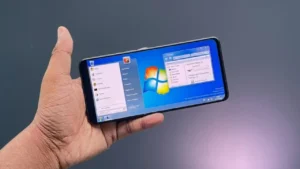
Android smartphones offer plenty of customization options, but some users want a completely different experience. If you’ve ever wished your phone looked more like a desktop computer, a computer launcher can help transform your Android device with a Windows-style interface.
These launchers bring familiar desktop elements such as a taskbar, start menu, desktop icons, and computer-like navigation, giving your smartphone a unique and refreshing look.
Also read: Android Charging Too Slow? These Simple Tips Can Help Your Phone Charge Faster
What Is a Computer Launcher?
A computer launcher is an Android app that changes the appearance of your home screen to resemble a traditional desktop operating system.
Instead of the standard Android layout, the launcher creates a Windows-inspired environment with desktop-style controls and navigation. It does not install Windows on your phone, but it can recreate much of the visual experience.
This makes your device feel more like a mini computer while keeping all your Android apps and features intact.
Key Features of a Computer Launcher
Desktop-Style Interface
One of the biggest attractions of these launchers is the desktop-inspired design.
You may find features such as:
- Taskbar navigation
- Start menu-style launcher
- Desktop shortcuts
- File manager-style interface
- Windows-inspired icons
This layout can make your phone feel completely different from a standard Android device.
Customization Options
Most computer launchers offer various personalization settings.
Users can:
- Change wallpapers
- Customize app icons
- Create folders
- Rearrange desktop shortcuts
- Modify themes and layouts
This flexibility allows users to create a desktop experience that matches their preferences.
Easy Navigation
People who regularly use Windows PCs may find the interface familiar and easy to understand.
The desktop-style navigation helps users quickly access apps, settings, and shortcuts without learning a completely new system.
Useful Widgets and Shortcuts
Many launchers include widgets designed to mimic desktop tools.
Common options include:
- Clock widgets
- Calendar widgets
- Quick settings shortcuts
- Notification panels
- File access shortcuts
These additions help improve both appearance and functionality.
How to Set Up a Computer Launcher on Android
Step 1: Download the App
Install a trusted computer launcher from the Google Play Store.
Step 2: Complete the Setup
Open the app and follow the on-screen instructions. You may need to grant certain permissions for the launcher to work properly.
Step 3: Customize Your Desktop
Choose your preferred wallpaper, icon style, widgets, and desktop layout.
Step 4: Start Using the New Interface
Once configured, your Android phone will display a computer-style interface while continuing to run your regular apps and services.
Benefits of Using a Computer Launcher
Familiar Windows-Like Experience
Users who enjoy desktop operating systems can bring a similar look to their smartphones.
Better Organization
Desktop layouts can make it easier to arrange apps, folders, and shortcuts in a structured way.
Enhanced Personalization
Computer launchers offer additional customization options beyond the standard Android interface.
Unique Appearance
A desktop-style launcher gives your phone a fresh look that stands out from traditional Android setups.
Things to Keep in Mind
Performance May Vary
Some launchers use additional system resources. Older smartphones may experience slower performance depending on device specifications.
Not a Real Windows Operating System
While the interface looks similar to Windows, the launcher only changes the appearance and navigation style. It does not turn your Android phone into a full Windows computer.
Download the Computer Launcher
If you’d like to try a Windows-style launcher on your Android phone, you can download one directly from the Google Play Store.
Google Play Store Link:
https://play.google.com/store/apps/details?id=com.visnalize.win7simu
You can also search for “Win7 Simu” on the Google Play Store if you prefer downloading it manually through the Play Store search function.
Final Thoughts
A computer launcher is a fun and practical way to give your Android smartphone a desktop-inspired makeover. With features like a taskbar, desktop shortcuts, and Windows-style navigation, it offers a fresh user experience without changing your phone’s core functionality.
If you’re looking for a unique Android customization option and enjoy the classic look of Windows PCs, a computer launcher may be worth trying. Just remember that it changes the appearance of your device rather than replacing Android with a desktop operating system.