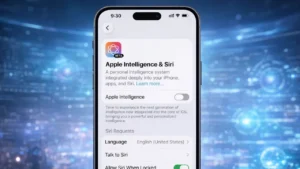
Apple Intelligence brings AI-powered features to Apple devices, helping with writing, summaries, and smart suggestions. But not everyone needs these features. If you prefer a simpler experience or want more control over your device, you can easily turn them off.
Here’s a clear guide to disabling Apple Intelligence completely or partially.
Also read: How to Create WhatsApp Contact Shortcuts on iPhone Using Official Methods
What Happens When You Turn It Off
Before disabling, it’s important to understand the impact:
- AI-based suggestions will stop
- Smart summaries and auto-replies will be disabled
- Your apps will continue working normally
- No personal data will be deleted
So, you’re only removing AI assistance—not core functionality.
Steps to Turn Off Apple Intelligence on iPhone and iPad
Follow these steps:
1. Open Settings
Go to the Settings app on your device.
2. Access AI Settings
Scroll and tap Apple Intelligence & Siri (name may vary slightly).
3. Disable Apple Intelligence
Turn off the main toggle to stop all AI features.
Turn Off Individual Features (Optional)
If you don’t want to disable everything, you can control specific features:
Writing Suggestions
Disable AI writing tools from settings.
Notification Summaries
Turn off automatic summaries for alerts.
Smart Replies
Disable suggested replies in Messages or Mail.
This allows you to customize your experience.
How to Disable Apple Intelligence on Mac
1. Open System Settings
Click the Apple menu → System Settings
2. Find Apple Intelligence
Look for the AI-related settings section.
3. Turn Off Features
Disable the main toggle or specific options like suggestions and summaries.
Why Many Users Turn It Off
There are several reasons users prefer disabling Apple Intelligence:
- Avoid unnecessary suggestions
- Improve focus while using apps
- Reduce background processing
- Maintain better control over features
- Keep the interface clean
Not every user benefits from AI features, especially if they prefer manual control.
Can You Turn It Back On Later
Yes, anytime.
Apple allows you to re-enable Apple Intelligence whenever you want. Just go back to settings and turn the feature on again.
Also read: How to Set Up Automation in iOS Shortcuts for Daily Tasks
Final Thoughts
Apple Intelligence is designed to make tasks easier, but it’s not essential for everyone. If you’re not using these features, turning them off can simplify your experience and give you more control over your device.
The process is quick, safe, and completely reversible—so you can adjust it anytime based on your needs.