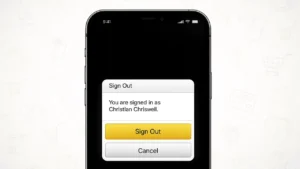
Staying logged in to Amazon is convenient, but there are situations where signing out becomes important. This could be because you are using a shared device, switching to another account, or simply want to secure your account after shopping.
This guide explains how to sign out of your Amazon account using the mobile app as well as the website, using only official and safe methods.
Also read: How to Disconnect Synced Contacts From Instagram
When Should You Log Out of Amazon
You may want to sign out of Amazon if:
- You are using someone else’s phone or computer
- Multiple people use the same device
- You are changing Amazon accounts
- You notice unusual activity on your account
- You are planning to sell or reset your phone
Logging out helps keep your orders, payments, and personal details safe.
How to Log Out of Amazon App on Android and iPhone
The process is the same on both platforms.
Steps to Sign Out
- Open the Amazon app
- Tap the menu icon in the bottom or top corner
- Scroll down and open Settings
- Tap Sign Out
- Confirm when asked
After signing out, you will see the Amazon login screen.
Also read: How Message Reactions Work in Telegram and How to Use Them
How to Log Out of Amazon Using a Web Browser
If you are using Amazon on a laptop, desktop, or mobile browser, follow these steps.
Steps to Sign Out From Amazon Website
- Open Amazon in your browser
- Go to Account & Lists
- Click or tap Sign Out
This logs you out of your account immediately.
How to Log Out of Amazon on All Devices
If you think your account is logged in on unknown devices, you can take extra steps.
- Log in to Amazon
- Go to Your Account
- Open Manage Your Content and Devices
- Check the list of devices
- Remove any device you do not recognize
- Change your password for better security
This helps prevent unauthorized access.
Also read: How to Find Mutual Friends on Snapchat Easily
What Changes After You Sign Out
After logging out:
- Your order history remains saved
- Your cart may be cleared on that device
- You must enter your password to log in again
- No purchases can be made without signing in
Your account data stays secure.
Troubleshooting Sign-Out Issues
If you cannot find the sign-out option:
- Update the Amazon app
- Restart your device
- Clear the app cache
- Try signing out using a browser
Most issues are fixed by updating the app.
Also read: How to Find Videos You Have Liked on YouTube Using Any Device
Final Thoughts
Signing out of your Amazon account on the app or website is quick and important for account security. Whether you are protecting your privacy or switching accounts, Amazon provides simple, built-in options to log out safely. Make it a habit to sign out when using shared or public devices.