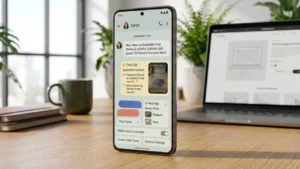
Google has started rolling out a new set of Android features as part of its September 2026 Android Drop, bringing several useful tools to compatible phones.
Some features are already available, while others are rolling out gradually or require a particular Android version. Here’s how the new features work and where you can find them.
Also read: How to Free Up Storage on Your Android Phone Without Deleting Important Files
1. Ask Gemini to Remember Where You Put Important Things
One of the most useful additions is a new way to use Gemini with Find Hub.
If you regularly forget where you kept your passport, spare keys, documents or other important items, you can ask Gemini to remember their location.
For example, you could tell Gemini that you placed your passport inside a particular drawer. Gemini can save that information in Find Hub so you can check it later instead of searching through the house.
How to Use Remembered Items
On a supported device:
- Open Gemini.
- Tell Gemini where you placed an important item.
- Ask it to remember the location in Find Hub.
- You can optionally add a photo of the item or its location.
- When you need the item again, ask Gemini where you put it.
- You can also check the Remembered items section in Find Hub.
Google says this feature is designed for items that don’t necessarily have a tracker attached, such as a passport or spare key. It is available on Android 16 or newer devices in supported countries where Gemini and Find Hub are available.
2. Use Motion Assist to Reduce Motion Sickness
Using your phone while sitting in a moving car can make some people feel uncomfortable or dizzy.
Google’s new Motion Assist feature is designed to help reduce that feeling by displaying a subtle overlay of moving bubbles on the screen.
The bubbles move according to the movement of the vehicle. The idea is to help reduce the mismatch between what your eyes see on the phone and what your body feels while travelling.
How to Turn On Motion Assist
On a compatible Android phone:
- Open Quick Settings.
- Look for Motion Assist.
- Tap it to turn the feature on.
- Alternatively, configure it to activate automatically during a ride.
- You can customize the bubble’s appearance, including its shape, color and transparency.
Motion Assist is designed for phones running Android 17, so it won’t necessarily appear on every Android device after the September update.
This could be particularly useful if you like reading, browsing social media or watching videos while travelling.
3. Try Guided Vision With Gemini Live
Another major addition is Guided vision, which brings a more useful visual assistance experience to Gemini Live.
The feature allows you to share your phone’s camera with Gemini Live and receive spoken descriptions of what the camera sees.
For example, it can help read small text on packaging, understand a menu in a dimly lit restaurant or identify objects around your home. Google says Guided vision was developed with blind and low-vision communities.
How to Use Guided Vision
If the feature is available on your phone:
- Open the Gemini app.
- Start a Gemini Live conversation.
- Share your camera view.
- Point the camera toward the object or area you want help with.
- Ask Gemini about what it sees.
- Follow its voice guidance if you need to move the camera or center an object.
Google says Guided vision can also be added to Accessibility shortcuts. It can be accessed through the TalkBack menu or Gemini app settings on supported devices.
The feature is rolling out to supported Android phones in countries where Gemini is available.
4. Create and Edit Google Keep Notes Without Leaving Messages
Google is also making collaboration easier by bringing Google Keep into Google Messages.
This means you can create and edit a shared note without leaving a conversation.
For example, if you’re planning a trip with friends, you could create a shared packing list or itinerary directly from the chat. Everyone involved can then view and update the note.
How to Use Google Keep Inside Messages
To try the feature:
- Open Google Messages.
- Open a conversation.
- Tap the + button beside the message field.
- Select Google Keep.
- Create a new note or work with an existing one.
- Share and edit the note with the people in the conversation.
Google says the rollout for this integration starts in Google Messages, although availability can vary depending on the account and region.
The main advantage is that you don’t have to constantly switch between Messages and Keep while planning something with other people.
5. Customize Individual Chats With New Themes
If you like personalizing your messaging apps, Google Messages is also getting more customization options.
The new Chat theme feature lets you give individual conversations their own background and color combination.
You can select an available wallpaper or use one of your own photos. The message bubbles can then be matched to the selected style, with additional color customization available.
How to Customize a Google Messages Chat
On supported versions of Google Messages:
- Open Google Messages.
- Select the conversation you want to customize.
- Open the conversation’s customization or theme options.
- Choose a background.
- Select the colors you prefer.
- Save the changes.
You can use different themes for different conversations, so a family chat, friends’ group and work conversation can each have their own appearance.
Why You May Not See These Features Yet
One important thing to remember is that not every Android phone will receive all five features at the same time.
Some features depend on the Android version, while others depend on Google apps such as Gemini, Find Hub or Google Messages. Regional availability can also affect when a feature appears.
If you don’t see a feature yet, check that your Android system and Google apps are updated.
How to Check for Android Updates
You can check for a system update from your phone’s Settings app.
The exact menu can vary between manufacturers, but it is usually found under:
Settings → System → Software Update
On some phones, the option may instead appear under:
Settings → Software Update
You should also check the Play Store for updates to Google Messages, Gemini and other Google apps, since some of the new features are delivered through apps rather than a complete Android system update.
Which New Android Feature Is Most Useful?
That depends on how you use your phone.
Remembered Items could be the most useful for people who frequently misplace important things. Motion Assist is aimed at people who experience discomfort while using their phones in vehicles.
For accessibility, Guided vision is one of the more significant additions because it can provide spoken information about the user’s surroundings.
Meanwhile, Google Keep integration and Chat themes are more focused on messaging and everyday convenience.
Also read: How to Check Which Apps Are Using the Most Mobile Data on Your Android Phone
Final Thoughts
Google’s September 2026 Android update isn’t just about changing the look or performance of Android. Several of the new features are designed around small problems people deal with every day.
Being able to ask Gemini where you left your passport, use Motion Assist during a car ride, get help understanding something through your camera, edit a shared Keep note from a conversation, or personalize individual chats can make an Android phone more useful without requiring complicated setup.