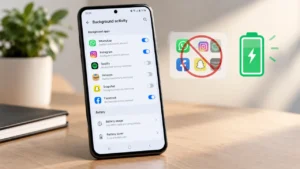
If your Android phone seems to lose battery even when you are barely using it, background apps could be part of the reason.
Many apps continue doing small tasks after you leave them. They may check for new messages, refresh content, sync information, use your location or connect to the internet. One app may not make a huge difference, but several apps doing this throughout the day can add up.
The good news is that Android gives you several ways to control which apps can continue working in the background.
Here’s how to find the apps using the most battery and stop unnecessary background activity without affecting the apps you actually need.
Also read: How to Use Google’s New Android Features From the September 2026 Update
Why Do Apps Run in the Background?
An app doesn’t necessarily stop working just because you have switched to another app.
For example, a messaging app may need to remain active so it can deliver notifications. A navigation app may use location services, while a cloud-storage app may sync files in the background.
Android already includes its own power-management features to reduce unnecessary background activity, but some apps can still use more battery than expected. Repeated background network activity can also wake the phone and consume additional power.
The first step is therefore to find out which apps are actually consuming battery.
Check Which Apps Are Draining Your Battery
Before restricting random apps, check your phone’s battery usage.
On many Android phones:
- Open Settings.
- Tap Battery.
- Open Battery usage or Battery usage by app.
- Look through the list of apps.
- Check which apps are using a significant amount of battery in the background.
On Google Pixel phones, you can go to Settings > Battery > Battery usage and review battery consumption by app.
The exact wording may be different on Samsung, Xiaomi, OnePlus, Motorola and other Android phones.
Don’t automatically restrict an app simply because it appears near the top. A game, camera app or video app can naturally use a lot of battery while you’re actively using it. What matters here is whether an app is consuming battery when you aren’t really using it.
Restrict Background Battery Usage for Unnecessary Apps
Once you’ve identified an app that doesn’t need to work continuously, look for its battery settings.
On supported Android phones, you may see options such as Allow background usage, Optimized, Restricted, or similar controls.
On Google Pixel devices, you can open:
Settings > Battery > Battery usage > Select an app
From there, Android provides options for controlling how the app uses battery in the background. Google recommends keeping battery optimization enabled for apps unless you have a reason to change it.
If an app is rarely used and doesn’t need instant updates, restricting its background activity can be a useful way to reduce unnecessary battery consumption.
Samsung Galaxy Users Have More Background Controls
Samsung Galaxy phones provide dedicated controls for apps that don’t need to run constantly.
Depending on the Galaxy model and One UI version, you can go to:
Settings > Battery > Background usage limits
You’ll typically find options such as:
- Sleeping apps
- Deep sleeping apps
- Never sleeping apps
Samsung says sleeping apps can still run occasionally when necessary, while deep sleeping apps do not run in the background and only work when you open them manually.
How to Add an App to Deep Sleeping
- Open Settings.
- Tap Battery.
- Select Background usage limits.
- Tap Deep sleeping apps.
- Tap the + button.
- Select the apps you rarely use.
- Tap Add.
This can be particularly useful for apps that you open only occasionally.
Keep in mind that deep-sleeping an app can delay its notifications or background updates because it won’t remain active in the background.
Don’t Put Every App Into Deep Sleep
It’s tempting to add as many apps as possible to a restricted list, but that’s not always a good idea.
Some apps need background access to provide their main features.
For example, you may not want to aggressively restrict:
- Messaging apps
- Email apps you rely on
- Alarm or reminder apps
- Navigation apps
- Authentication or security apps
- Fitness or health apps that track activity
- Apps that need timely notifications
If you restrict these apps, notifications may arrive late or some background features may stop working properly.
The better approach is to target rarely used apps that don’t need real-time updates.
Turn On Battery Saver When You Need Extra Battery
If your battery is already running low, Android’s Battery Saver or Power Saving mode can provide a broader solution.
Battery Saver can reduce background activity and limit certain power-hungry features. Depending on your phone, it may also restrict background data, location activity or other functions.
You can usually find it under:
Settings > Battery > Battery Saver
or
Settings > Battery > Power Saving
The exact option depends on your phone.
It’s especially useful when you know you won’t have access to a charger for several hours.
Remove Apps You No Longer Use
Sometimes the simplest solution is to uninstall an app altogether.
If you haven’t opened an app for months, there’s little reason to keep it installed just in case you might use it someday.
Removing unused apps can reduce unnecessary background activity and also free up storage space.
Go to:
Settings > Apps > See all apps
Select an app you no longer need and choose Uninstall.
You can also uninstall apps directly from the app drawer or Google Play Store on many Android phones.
Be Careful With Force Stop
Android also gives you a Force stop option for many apps.
It can be useful when a particular app is behaving badly, consuming unusually high battery or appears to be stuck running in the background.
However, you don’t need to force stop apps every time you leave them.
Google specifically recommends using battery settings to manage apps with high background usage, while force stopping should generally be reserved for apps causing problems. Some essential apps and services should not be force stopped.
In other words, don’t make force-stopping every app part of your daily routine.
Check for Apps With Unusual Battery Usage
If one app suddenly starts using much more battery than usual, investigate it instead of immediately blaming Android itself.
Open your battery settings and look at the app’s usage.
A sudden increase could be related to:
- An app update
- Excessive background syncing
- Location access
- Frequent notifications
- Continuous media playback
- A software bug
- Poor network conditions
If the problem started after an app update, check whether another update is available. You can also try uninstalling and reinstalling the app if appropriate.
Samsung similarly recommends checking detailed battery usage and updating apps that are causing problems.
Reduce Background Activity Without Breaking Notifications
You don’t need to completely disable background activity to get better battery life.
A better strategy is to divide your apps into two groups.
Apps that need to stay active:
Messaging, email, navigation, alarms and other apps where timely updates matter.
Apps that can sleep:
Shopping apps, food-delivery apps, rarely used social apps, old games and other apps that you only open occasionally.
Put the second group to sleep or restrict their background usage.
This gives you a better balance between battery life and functionality.
Other Simple Changes That Can Help
Background apps aren’t the only reason an Android phone loses battery.
You can also make a few simple changes:
Lower Screen Brightness
The display can consume a significant amount of power, especially at high brightness. Using adaptive brightness or lowering brightness when possible can help.
Shorten Screen Timeout
Set your screen to turn off sooner when you’re not using it.
Turn Off Unused Connections
If you don’t need Bluetooth, Wi-Fi or location services at a particular time, turning them off can reduce unnecessary power consumption.
Keep Your Apps Updated
App updates can include performance and battery-efficiency improvements. Keeping apps updated is also useful when you’re dealing with unusual battery consumption.
Avoid Unnecessary Cleaner Apps
You generally don’t need a third-party “RAM cleaner” or battery booster constantly running in the background just to manage Android apps.
Your phone already has built-in battery and app-management tools, so start with those before installing another app to manage your other apps.
Also read: How to Check Which Apps Are Using the Most Mobile Data on Your Android Phone
Final Thoughts
You don’t need to stop every Android app from running in the background to improve battery life.
Instead, start by checking Battery usage and identifying the apps that are actually consuming power when you’re not using them. Then restrict background activity for apps you rarely use, put suitable apps into sleep or deep sleep, and keep essential apps unrestricted when they need to deliver notifications.
The exact settings can look different depending on your Android phone, but the idea is the same: let important apps work normally and prevent unnecessary apps from using battery when you don’t need them.
A few minutes spent cleaning up your background app settings can make your phone’s battery behavior noticeably easier to manage.