Running out of storage on an Android phone can be frustrating, especially when most of your photos, videos, documents, and apps are still important to you. A nearly full phone can also make everyday tasks feel slower and leave you with little space for new photos, app updates, or downloads.
The good news is that you don’t always need to delete important files to reclaim storage. Android provides several built-in tools that can help you identify what is taking up space and safely remove unnecessary data.
Here are some practical ways to free up storage on your Android phone without losing files you actually need.
Also read: How to Use AI Mode in Google Search to Get Better Results
Check What Is Taking Up Storage First
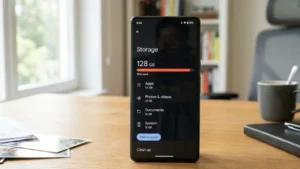
Before deleting anything, find out where your storage is being used.
On most Android phones, you can check this by going to:
Settings → Storage
The exact menu name may vary depending on your phone’s brand and Android version.
You will usually see categories such as apps, photos and videos, documents, audio, downloads, and system files. This gives you a better idea of where to start instead of randomly deleting files.
If videos are taking up most of your storage, for example, cleaning your app cache won’t make much difference.
Remove Unnecessary Downloads
The Downloads folder can quietly become one of the biggest sources of unwanted files.
Over time, you may accumulate:
- Old PDFs
- Images downloaded from websites
- Duplicate documents
- Installation files
- Shared files you no longer need
- Old ZIP files
Open your phone’s Files or Files by Google app and check the Downloads folder.
Review the files carefully before deleting anything. If you find something you may need later, move it to cloud storage or another device instead of permanently removing it.
Clear App Cache
Apps can store temporary files called cache data to make certain tasks load faster. However, some apps can accumulate a surprisingly large amount of cached data over time.
You can usually check an app’s storage usage through:
Settings → Apps → Select an app → Storage
If the cached data is unusually large, you may see an option to clear it.
Keep in mind that clearing the cache is different from clearing an app’s storage or data. Do not tap “Clear storage” unless you understand what it will remove, as it can sign you out of the app or delete locally stored information.
Clean Up WhatsApp and Other Messaging Apps
Messaging apps can consume a huge amount of storage because photos, videos, documents, voice messages, and other media may be saved on your phone.
In WhatsApp, you can review storage usage from:
WhatsApp → Settings → Storage and data → Manage storage
You can identify large files and media from frequently used chats and remove unnecessary items.
This is particularly useful for clearing old forwarded videos, duplicate images, memes, and large files without deleting your entire chat history.
Before removing anything, make sure important photos or documents are backed up somewhere else.
Move Photos and Videos to Cloud Storage
Photos and videos are often responsible for a large portion of a phone’s storage usage.
Instead of deleting memories, consider backing them up to a cloud service such as Google Photos.
After confirming that your important photos and videos have been backed up successfully, you can use the available cleanup option to remove copies stored locally on your phone.
This can free up several gigabytes without permanently losing your backed-up photos.
However, always check that the backup has completed before removing local copies.
Delete Duplicate and Blurry Photos
Your gallery may contain many files that are technically unnecessary.
For example, you might have:
- Multiple copies of the same photo
- Blurry shots
- Accidental screenshots
- Old memes
- Unwanted screen recordings
- Photos taken while testing the camera
Instead of deleting entire albums, spend a few minutes reviewing these categories and remove only the files you no longer need.
Some Android phones and gallery apps also provide tools for identifying duplicate or similar images, which can make the process much faster.
Review Large Files
Finding a few very large files can sometimes free more storage than deleting dozens of small ones.
Open your file manager and look for a Large files or similar cleanup section.
Large videos, downloaded movies, archived files, old installation packages, and screen recordings are worth checking first.
If an important file is large but you don’t need it on your phone every day, consider transferring it to a computer, external drive, or cloud storage.
Uninstall Apps You No Longer Use
Apps can take up more space than you might expect, particularly games and apps that store offline content.
Go through your installed apps and ask yourself which ones you actually use.
If an app hasn’t been opened for several months, uninstalling it may be a simple way to recover storage.
You can always reinstall an app later if you need it again, provided your account or data is synced appropriately.
Some Android phones also offer recommendations for unused apps, making it easier to identify applications you rarely open.
Remove Offline Content
Streaming apps are convenient, but downloaded content can occupy a significant amount of storage.
Check apps such as music and video streaming services for offline downloads.
Old movies, TV episodes, playlists, podcasts, maps, and other downloaded content may still be stored even though you have already finished using them.
Deleting these offline copies won’t necessarily affect your account or subscriptions. You can download the content again whenever you need it.
Clear Old Screen Recordings and Screenshots
Screenshots and screen recordings are easy to forget.
A short screen recording can take hundreds of megabytes, while longer recordings can consume even more space.
Look through your Screenshots, Screen recordings, and similar folders and remove files that were created for temporary purposes.
This is especially useful if you frequently capture troubleshooting steps, conversations, online receipts, or app demonstrations.
Use Android’s Built-In Cleanup Suggestions
Many Android phones include a storage management or cleanup feature.
Depending on your phone, you may find suggestions for:
- Unused apps
- Duplicate files
- Large files
- Old screenshots
- Junk files
- Backed-up photos
- Temporary data
These recommendations can make the cleanup process easier because they help you focus on files that are less likely to be important.
Still, don’t automatically approve every suggested deletion. Review the items before confirming.
Move Important Files Instead of Deleting Them
If you have important documents, videos, or photos that you rarely access, you don’t necessarily need to keep them on your phone.
You can move them to:
- A computer
- An external SSD or hard drive
- A USB-C flash drive
- Cloud storage
- Another trusted storage device
This approach gives you more free space while keeping your important files available when you need them.
Avoid Random “Phone Cleaner” Apps
You may come across apps promising to dramatically boost storage or speed up your phone.
Be careful with third-party cleaner apps. Some may request unnecessary permissions, show excessive advertisements, or offer little benefit beyond what Android’s own storage tools can already do.
For routine cleanup, your phone’s built-in storage manager and a trusted file manager are usually enough.
Don’t Delete System Files Manually
While cleaning your phone, you may encounter folders or files that you don’t recognize.
It’s best to leave system-related files alone unless you know exactly what they are.
Deleting an unfamiliar system file simply because it appears large can cause apps or parts of Android to malfunction.
When in doubt, focus on personal files, unused apps, downloads, cached data, and offline content instead.
How Much Free Storage Should You Keep?
There isn’t one universal amount of free space that every Android phone needs, but keeping some storage available is a good idea.
A phone with almost no free space can have trouble installing updates, saving new photos, downloading files, and handling temporary app data.
Instead of waiting until your storage reaches 99 or 100 percent, try to keep a reasonable amount of free space available and perform a quick cleanup occasionally.
Also read: How to Stop Your Phone From Overheating: Simple Fixes That Actually Work
Final Thoughts
Freeing up Android storage doesn’t have to mean deleting your important photos, documents, or other personal files.
Start by checking what’s actually using your storage. Then focus on unnecessary downloads, cached data, old messaging media, duplicate photos, offline content, unused apps, and large files.
For anything important that you don’t need to keep locally, moving it to cloud storage or another device can be a much safer solution than deleting it permanently.
A few minutes of regular storage management can keep your Android phone organized, make room for new content, and help you avoid the frustration of seeing the “Storage almost full” notification at the worst possible time.