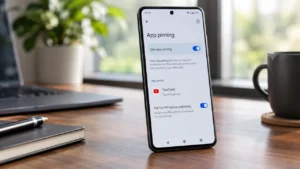
Have you ever handed your Android phone to someone just to show them a photo, watch a video, make a call or play a game, only to worry that they might accidentally open something private?
Android has a simple feature called App Pinning that can help in these situations.
When App Pinning is enabled, you can lock the phone to a single app. The person using your phone can continue using that app, but they cannot normally switch to your other apps until you unpin the screen. Google specifically recommends this feature for situations where you want someone to use one app without giving them access to the rest of the phone.
Here’s how it works and how you can use it.
Also read: How to Use Google’s New Android Features From the September 2026 Update
What Is App Pinning on Android?
App Pinning, sometimes called Screen Pinning, keeps one selected app on your screen until you manually unpin it.
For example, you can pin:
- YouTube while someone watches a video
- Photos while showing vacation pictures
- A game for a child
- The Phone app when someone needs to make a quick call
- A specific webpage or app you want someone to use
Once the app is pinned, the usual navigation options cannot be used to freely move around your phone.
To return to the rest of your phone, you need to unpin the app. If you enable the security option, Android will ask for your PIN, pattern or password before allowing the phone to return to normal use.
How to Turn On App Pinning
The exact settings can vary between Android phones, but on many devices the option is available inside the security settings.
Try these steps:
- Open Settings.
- Go to Security or Security & privacy.
- Look for More security settings or Advanced.
- Find App pinning or Screen pinning.
- Turn on App pinning.
On Pixel and other phones using a relatively close-to-stock Android interface, Google lists App Pinning under the security settings.
If you cannot find it, use the search bar inside the Settings app and search for App pinning or Screen pinning.
Turn On PIN or Password Protection
Simply pinning an app is useful, but it is better to also require your screen lock before unpinning.
Depending on your phone, the option may be called:
- Ask for PIN before unpinning
- Lock device when unpinning
- Ask for pattern before unpinning
- Require password before unpinning
Turn this option on if it is available.
This means someone using your phone cannot simply leave the pinned app and start browsing through your other apps. Google says a PIN, pattern or password can be required when unpinning a screen.
How to Pin an App
Once App Pinning is enabled, open the app you want to pin.
For example, open YouTube if you want someone to watch a video.
Then:
- Open the Recent apps screen.
- Find the app you want to pin.
- Tap the app icon at the top of its preview.
- Tap Pin.
The selected app will now remain on the screen.
On gesture navigation, you can usually open Recent apps by swiping up from the bottom of the screen and holding. On three-button navigation, tap the Recent apps button.
How to Unpin an App
When you’re finished, you need to unpin the app to return to normal phone use.
The method depends on your navigation system.
With gesture navigation:
- Swipe up from the bottom and hold.
With three-button navigation:
- Touch and hold the Back and Overview/Recent apps buttons together.
If you enabled the security option, Android will then ask for your PIN, pattern or password.
Why App Pinning Is Useful
App Pinning is especially useful when you regularly hand your phone to other people.
When Showing Photos
If you’re showing someone pictures, you can pin the Photos app instead of leaving the entire phone unlocked for them to explore.
When Giving Your Phone to a Child
You can pin a game or another suitable app so the child cannot easily switch to other parts of the phone.
When Someone Needs to Make a Call
If someone needs to use your phone for a quick call, you can pin the Phone app and keep the rest of your phone out of reach.
When Someone Wants to Watch a Video
You can pin YouTube or another video app and hand over the phone without giving the person normal access to your home screen.
App Pinning Is Not the Same as App Lock
These two features can sound similar, but they work differently.
App Lock protects a particular app with a PIN, password or biometric authentication.
App Pinning does the opposite: it keeps one selected app on the screen and prevents the user from freely switching to other apps.
So, if you want to protect WhatsApp itself, App Lock may be more appropriate where your phone supports it.
If you want to let someone use YouTube without giving them access to the rest of your phone, App Pinning is more useful.
Does App Pinning Completely Protect Your Private Data?
Not necessarily.
App Pinning is designed to restrict navigation between apps, but it should not be treated as a complete privacy or security solution.
Some apps can open other apps or display personal information while they are being used. Some manufacturers also recommend using a separate guest profile when you need to share your phone more extensively.
For a quick and controlled interaction, however, App Pinning can still be very useful.
What If You Cannot Find App Pinning?
Don’t assume your phone doesn’t have the feature immediately.
First, search for:
App pinning
or
Screen pinning
inside the Settings search bar.
The name and location can differ between manufacturers. For example, Motorola places the feature under Security & privacy → More security & privacy → App pinning on some recent devices.
If the option still does not appear, check your phone manufacturer’s support documentation.
Also read: How to Check Which Apps Are Using the Most Mobile Data on Your Android Phone
Final Thoughts
App Pinning is one of those Android features that can be easy to overlook, but it can be surprisingly useful.
Instead of handing someone your unlocked phone and hoping they only use the app you showed them, you can pin that app first. With PIN, pattern or password protection enabled for unpinning, you get an additional layer of control over what the other person can access.
If you frequently share your phone with family, friends or children, it’s worth checking whether App Pinning is available on your Android device.