Getting repeated WhatsApp calls from one person can be annoying, but blocking them is not always the right solution. Sometimes you still want to receive their messages, check updates later, or avoid creating tension. The good part is that WhatsApp offers official ways to reduce or silence calls without blocking anyone.
This guide explains practical and clean methods you can use on Android and iPhone without relying on third-party apps.
Also read: Create WhatsApp Stickers Without Installing Any App on Android and iPhone
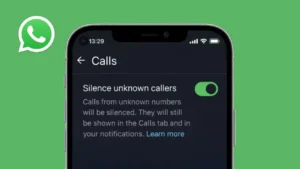
Use WhatsApp’s Built-In Call Silence Feature
WhatsApp has a feature designed specifically to reduce unwanted call disturbances.
How It Works
This option silences calls so your phone does not ring. The call still appears in the Calls tab and notifications, but it does not interrupt you.
Steps To Enable It
- Open WhatsApp
- Go to Settings
- Tap Privacy
- Open Calls
- Turn on Silence Unknown Callers
This is useful if the person is not saved in your contacts. Their calls will be muted automatically while messages continue to work normally.
Mute Call Notifications For a Specific Contact
If the person is already in your contacts, this method works well.
On Android
- Open WhatsApp and go to the chat
- Tap the contact name at the top
- Open Notifications
- Turn off Call Notifications or set them to Silent
On iPhone
iOS does not allow separate call muting per contact inside WhatsApp, but you can still reduce interruptions by using Focus modes.
Also read: How to Reduce Chrome RAM Usage and Make Your Browser Faster
Use Focus Mode or Do Not Disturb Smartly
Focus modes allow WhatsApp calls to be silenced without blocking anyone.
Best Way To Use It
- Create a custom Focus or Do Not Disturb mode
- Allow calls only from selected contacts
- Keep WhatsApp notifications muted during that time
This is ideal for work hours, sleep time, or when you want peace without changing WhatsApp settings again and again.
Turn Off WhatsApp Call Notifications Completely
If calls in general are bothering you, you can mute all WhatsApp calls while keeping messages active.
Steps
- Open phone Settings
- Go to Apps
- Select WhatsApp
- Open Notifications
- Disable Call Notifications
This method is simple and effective if you rarely use WhatsApp calls.
Also read: How to Stop WhatsApp From Auto-Downloading Media and Filling Up Your Gallery
Lower WhatsApp Call Volume Manually
Another underrated trick is reducing the call volume.
- When a WhatsApp call rings, press the volume down button
- Your phone remembers this level for future calls
This keeps calls extremely quiet without affecting message alerts.
What You Should Avoid
- Avoid unofficial apps claiming to control WhatsApp calls
- Do not modify app files or settings
- Do not rely on risky methods that can compromise privacy
Using only built-in phone and WhatsApp features keeps your account safe.
Also read: How to Lock WhatsApp Chats Using Built-in Privacy Features
Final Thoughts
You do not need to block someone just to avoid their WhatsApp calls. With built-in options like silencing unknown callers, notification controls, and Focus modes, you can manage interruptions in a calm and professional way. These methods help you stay connected while protecting your peace and daily routine.