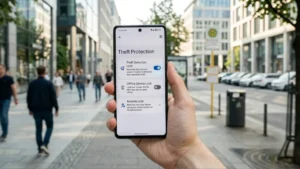
Smartphones store everything from personal photos and banking apps to passwords and important documents. If your phone is ever lost or stolen, protecting this data becomes a top priority.
To help users stay safe, Google has introduced Theft Protection features on Android. These tools are designed to make it harder for thieves to access your phone and personal information.
In this guide, you’ll learn how to enable Theft Protection on your Android phone and understand the security features it offers.
Also read: How to Turn Off Ads on Your Android Phone (Safe Methods That Actually Work)
What Is Android Theft Protection?
Android Theft Protection is a set of security features that helps protect your phone if it is stolen.
Depending on your Android version and supported device, these features can:
- Lock your phone automatically if theft is detected.
- Allow you to remotely lock the device.
- Protect your Google account.
- Help you locate your phone.
- Prevent thieves from changing important security settings.
How to Enable Theft Protection
Follow these steps:
- Open Settings.
- Tap Google.
- Select All Services (if available).
- Open Theft Protection.
- Turn on all available protection features.
Some phones may display these options under Security & Privacy instead.
Theft Detection Lock
One of the most useful features is Theft Detection Lock.
If your phone detects suspicious movement—such as someone grabbing it and running away—it can automatically lock the screen to protect your data.
This feature uses AI and your phone’s motion sensors to recognise unusual activity.
Offline Device Lock
If someone disconnects your phone from the internet after stealing it, Android can automatically lock the device after a short period.
This prevents thieves from bypassing online security features by turning off mobile data or Wi-Fi.
Remote Lock
Google also lets you lock your phone remotely.
If your phone is missing:
- Visit Find My Device from another device.
- Sign in with your Google account.
- Select your phone.
- Choose Lock Device.
Your phone will be locked immediately if it is connected to the internet.
Find My Device
The Theft Protection system works even better when Find My Device is enabled.
To check:
- Open Settings.
- Tap Security & Privacy.
- Open Find My Device.
- Make sure it is turned on.
This allows you to locate, lock, or erase your phone remotely.
Which Phones Support Theft Protection?
Availability depends on:
- Android version
- Google Play Services
- Device manufacturer
- Region
Newer Android phones are more likely to receive these security features through software updates.
Tips to Improve Phone Security
For better protection:
- Use a strong screen lock.
- Enable Fingerprint or Face Unlock.
- Keep your phone updated.
- Turn on Find My Device.
- Enable Theft Protection features whenever available.
Frequently Asked Questions
Does Theft Protection work without the internet?
Some features, such as Offline Device Lock, are designed to protect your phone even if the internet connection is lost.
Can I use Theft Protection on every Android phone?
Support varies depending on your Android version and device model.
Is Theft Protection free?
Yes. These security features are provided by Google at no additional cost on supported devices.
Also read: How to Hide Apps on Any Android Phone Without Installing Any App
Final Thoughts
Android Theft Protection adds an extra layer of security for users who want to keep their personal information safe. Features like Theft Detection Lock, Offline Device Lock, and Remote Lock can make it much more difficult for someone to access your phone if it is lost or stolen.
If your device supports these features, enabling them only takes a few minutes and can provide valuable protection when you need it most.