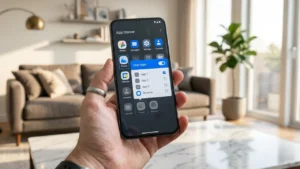
Many Android users have apps they don’t want appearing on the home screen or app drawer. Whether it’s banking apps, work tools, personal photos, or social media apps, hiding them can add an extra layer of privacy.
The good news is that you don’t always need a third-party app. Most modern Android phones already include built-in options to hide apps, depending on the brand and software version.
Here’s how you can hide apps on almost any Android phone using official methods.
Also read: How to Find Hidden Apps on Any Android Phone (2026 Guide)
Can You Hide Apps Without Downloading an App?
Yes. Many Android manufacturers now provide a built-in Hide Apps feature.
Brands that commonly support it include:
- Samsung Galaxy
- OnePlus
- OPPO
- realme
- vivo
- Xiaomi
- Motorola (selected models)
If your phone doesn’t have this feature, there are still other built-in ways to keep apps out of sight.
Method 1: Hide Apps Using Your Phone’s Launcher
Many Android phones allow you to hide apps directly from the launcher settings.
Generally, the steps are:
- Open the App Drawer.
- Tap the three-dot menu or long-press an empty area on the home screen.
- Open Home Screen Settings or Launcher Settings.
- Tap Hide Apps (if available).
- Select the apps you want to hide.
- Save the changes.
The selected apps will no longer appear in the app drawer but will remain installed on your phone.
Method 2: Use Secure Folder or Private Space
Some smartphones offer a private area where apps can be stored separately.
Examples include:
- Samsung Secure Folder
- Private Space
- Second Space
- App Lock with Hidden Apps
Apps placed inside these protected areas remain hidden unless you unlock the private section.
Method 3: Remove Apps From the Home Screen
If your phone doesn’t support hiding apps, you can simply remove them from the home screen.
This doesn’t uninstall the app.
Just:
- Long-press the app icon.
- Tap Remove or Remove from Home.
The app stays installed but won’t appear on your home screen.
Method 4: Disable Unused System Apps
For pre-installed apps you never use:
- Open Settings.
- Go to Apps.
- Select the app.
- Tap Disable (if available).
Disabled apps disappear from normal use until you enable them again.
Can Someone Still Find Hidden Apps?
Yes.
Even if an app is hidden, it can usually still be found through:
- Settings → Apps
- Search inside Settings
- Google Play Store → Installed Apps
Hiding apps improves privacy but isn’t a complete security solution.
Add Extra Protection
For better privacy, you can also:
- Enable App Lock
- Use Fingerprint Lock
- Enable Face Unlock
- Lock sensitive apps individually
These features help prevent unauthorized access even if someone finds the app.
Frequently Asked Questions
Does hiding an app delete it?
No. The app remains installed and continues to work normally.
Will hidden apps still receive updates?
Yes. Apps hidden using built-in features continue receiving updates through the Google Play Store.
Can I hide WhatsApp?
Many Android phones allow WhatsApp to be hidden using the built-in Hide Apps feature or a private folder.
Is it safe to use third-party app hiders?
It’s usually better to use your phone’s built-in privacy features. Third-party app hiders may request unnecessary permissions.
Also read: How to Turn Off Ads on Your Android Phone (Safe Methods That Actually Work)
Final Thoughts
Hiding apps is a simple way to improve privacy without uninstalling anything. Most Android phones now include built-in tools that let you keep important apps away from the app drawer while still allowing quick access whenever you need them.
If your phone supports features like Hide Apps, Secure Folder, or Private Space, using those official options is the safest and most reliable way to keep your apps private.