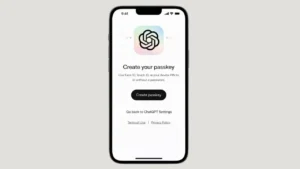
Online security is evolving, and traditional passwords are no longer the safest way to protect your accounts. If you use OpenAI services regularly, switching to passkeys can significantly improve your account protection. Passkeys offer a password-free login experience that is both secure and convenient.
In this guide, you will learn how to enable passkeys for your OpenAI account, how they work, and why they are more secure than regular passwords.
Also read: How to Use ChatGPT for the First Time: A Beginner’s Guide
What Are Passkeys and How Do They Work?
Passkeys are a modern authentication method designed to replace passwords. Instead of typing a password every time you log in, you verify your identity using:
- Fingerprint
- Face recognition
- Device PIN
- Hardware security key
Passkeys use public key cryptography. Your device stores a secure private key, while the service keeps a matching public key. This means your login credentials are never shared directly, making it extremely difficult for attackers to steal them.
Why You Should Use Passkeys for OpenAI
Here are the main advantages:
Strong Protection Against Phishing
Passkeys cannot be entered into fake websites like passwords can.
No Password Reuse Risk
You do not need to reuse or remember complex passwords.
Faster Login Experience
Authentication takes seconds using biometric verification.
Device-Based Security
Your credentials stay securely stored on your trusted device.
Requirements Before You Begin
Before setting up passkeys, ensure:
- Your device supports biometric authentication or screen lock.
- You are using an updated browser such as Chrome, Safari, Edge, or Firefox.
- Your device software is up to date.
Modern smartphones and laptops generally support passkeys.
How to Set Up Passkeys on Your OpenAI Account
Follow these steps carefully:
Step 1: Log In Normally
Go to the official OpenAI website and sign in using your current login method.
Step 2: Open Account Settings
Click your profile icon and navigate to account settings.
Step 3: Go to Security Options
Find the security or login section within your account settings.
Step 4: Add a Passkey
Select the option to enable or add a passkey.
Your device will prompt you to verify your identity using fingerprint, Face ID, or device PIN.
Step 5: Confirm Setup
Once verified, your passkey will be securely stored on your device.
From now on, you can sign in using biometric authentication instead of typing a password.
Can You Use Passkeys Across Multiple Devices?
Yes. You can add passkeys on:
- Your smartphone
- Your laptop
- Your tablet
Some ecosystems such as iCloud Keychain or Google Password Manager can securely sync passkeys across your devices.
What If You Change or Lose Your Device?
If you lose access to a device:
- Log in using another registered device.
- Visit your security settings.
- Remove the old device from your passkey list.
It is also recommended to keep a backup authentication method enabled.
Is It Still Necessary to Use Two-Factor Authentication?
Passkeys are already highly secure, but enabling additional verification methods can provide extra protection. Layered security always improves account safety.
Also read: How to Use ChatGPT for Productivity: 7 Smart Ways to Save Time Every Day
Final Thoughts
Enabling passkeys for your OpenAI account is one of the simplest ways to strengthen your login security. It removes the risks associated with weak passwords and protects you against phishing attempts. At the same time, it makes logging in faster and more convenient.
If you want a safer and modern login experience, setting up passkeys is a smart step toward better account protection.