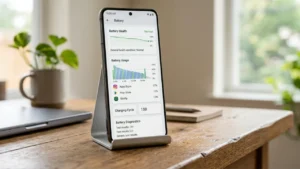
Your smartphone’s battery is one of its most important components. Over time, every battery loses its ability to hold a full charge, which can lead to shorter battery life, unexpected shutdowns, and slower performance. If you’ve noticed that your Android phone drains quickly or doesn’t last as long as it used to, checking your battery health is the first step toward finding the cause.
In this guide, you’ll learn how to check battery health on any Android phone, including Samsung, Google Pixel, OnePlus, Xiaomi, OPPO, vivo, realme, Motorola, and other popular brands.
Also read: Rolling Icons – App and Photo: Make Your Android Home Screen Fun and Interactive
What Is Battery Health?
Battery health refers to the overall condition of your phone’s battery compared to when it was brand new.
A new battery typically operates at 100% health. As you charge and discharge your phone over time, the battery gradually wears out. Once battery health drops significantly, you may notice:
- Faster battery drain
- Longer charging times
- Phone heating during normal use
- Unexpected shutdowns
- Reduced overall performance
Checking battery health helps you determine whether the issue is caused by battery aging or something else.
Method 1: Check Battery Health in Phone Settings
Some Android manufacturers now provide battery health information directly in the Settings app.
Samsung Galaxy Phones
- Open Settings.
- Tap Battery and Device Care.
- Select Battery.
- Open Battery Information (available on supported models).
Newer Galaxy devices may display battery condition or estimated battery lifespan.
Google Pixel Phones
Recent Pixel devices may show battery diagnostics through:
- Settings
- Battery
- Battery Health (on supported Android versions)
If the option isn’t available, Google may introduce it through future software updates.
Xiaomi, OnePlus, OPPO, vivo & realme
Some brands include battery diagnostics inside:
- Device Care
- Battery
- Phone Manager
- Security app
The exact location depends on your phone model and Android version.
Method 2: Use Android Battery Diagnostics
Many Android phones include hidden battery diagnostic tools.
You can access them through:
- Device diagnostics
- Support app
- Manufacturer health check
These tools often display:
- Battery condition
- Charging performance
- Battery temperature
- Estimated lifespan
Method 3: Check Battery Health Using a Trusted App
If your phone doesn’t display battery health, you can use a reputable battery monitoring app from the Google Play Store.
These apps can show information such as:
- Battery capacity
- Charge cycles
- Charging speed
- Battery temperature
- Voltage
- Estimated battery wear
Always download battery apps from trusted developers and avoid apps requesting unnecessary permissions.
How to Tell If Your Battery Needs Replacement
Your battery may be reaching the end of its life if you experience:
- Battery dropping from 30% to 5% suddenly
- Phone shutting down before reaching 0%
- Battery draining within a few hours
- Device overheating regularly
- Battery swelling
- Slow charging despite using the original charger
If multiple symptoms appear together, replacing the battery may be the best solution.
Tips to Improve Battery Health
Even if your battery is in good condition, following a few habits can help extend its lifespan.
Avoid Extreme Heat
Heat is one of the biggest reasons batteries degrade faster. Try not to leave your phone in direct sunlight or hot environments.
Use Original Chargers
Certified chargers help maintain stable charging speeds and protect battery components.
Keep Software Updated
Manufacturers often release battery optimization improvements through system updates.
Don’t Let Battery Stay at 0% Frequently
Occasionally draining your battery completely isn’t harmful, but doing it regularly can increase battery wear over time.
Reduce Background Activity
Apps running continuously in the background consume unnecessary battery power.
Frequently Asked Questions
Can I check battery health on every Android phone?
Not every Android device includes a built-in battery health feature. However, many manufacturers now offer battery diagnostics, and trusted battery monitoring apps can provide additional information.
What battery health percentage is considered good?
Generally:
- 90–100% — Excellent
- 80–89% — Normal after long-term use
- Below 80% — Battery performance may noticeably decline
Does fast charging damage battery health?
Modern smartphones include battery management systems designed to protect the battery during fast charging. Using the manufacturer’s recommended charger is generally safe.
How long does an Android battery usually last?
Most lithium-ion smartphone batteries are designed to maintain good performance for several years under normal usage, though battery life gradually decreases over time.
Also read: Anthropic Expands Claude Voice Mode With Opus and Sonnet Models, Bringing Smarter AI Conversations
Final Thoughts
Checking your Android phone’s battery health is one of the easiest ways to understand why your device may not last as long as it once did. Whether your phone offers built-in battery diagnostics or you rely on trusted monitoring tools, keeping an eye on battery condition can help you identify problems early and improve your overall smartphone experience.
Simple habits like avoiding excessive heat, using quality chargers, and keeping your phone updated can also help maintain battery performance for the long term.