Have you ever noticed that your mobile data disappears much faster than expected? You may have used your phone normally, only to receive a warning that you’ve almost reached your monthly data limit.
The reason is often hiding in the background. Some apps can consume a surprising amount of mobile data while you are watching videos, scrolling through social media, downloading files, syncing content or even when you’re not actively using them.
Fortunately, Android makes it fairly easy to see which apps are using the most data. Once you know what’s responsible, you can decide which apps should be restricted and which ones can continue using mobile data normally.
Here’s how to check your mobile data usage and take control of it.
Also read: How to Stop Your Phone From Overheating: Simple Fixes That Actually Work
Check Mobile Data Usage on Your Android Phone
The exact settings can vary slightly between Samsung, Google Pixel, Xiaomi, OnePlus, Motorola and other Android phones. However, the basic process is usually similar.
Start by opening:
Settings → Network & internet → SIMs → App data usage
On some phones, you may instead find the option under:
Settings → Connections → Data usage → Mobile data usage
If you don’t see these exact options, use the search bar inside the Settings app and search for “Data usage.”
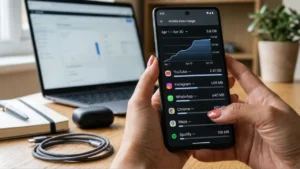
Once you open the data usage section, Android will show you how much mobile data has been consumed during a selected period.
Find the Apps Consuming the Most Data
After opening the mobile data usage page, scroll down to the app list.
You’ll typically see apps arranged according to how much mobile data they have used. The app at the top is usually responsible for the highest usage during the selected period.
For example, you might find that:
- YouTube is using several gigabytes
- Instagram is consuming hundreds of megabytes
- WhatsApp is using mobile data for media and calls
- Google Photos is uploading photos in the background
- A rarely used app is unexpectedly using a large amount of data
This list is useful because it shows where your data is actually going instead of making you guess.
Check the Data Usage Period
Before assuming that an app is using too much data, check the time period Android is showing.
Your phone may display usage for the current billing cycle, the previous month or a custom period.
If your mobile operator resets your data allowance on a particular date, it’s a good idea to make the Android tracking period match that cycle whenever your phone allows it.
This gives you a more accurate picture of your monthly usage.
Check an Individual App’s Data Usage
Want to know exactly how an app is consuming your data?
Tap the app from the data usage list.
Depending on your Android version and phone manufacturer, you may see separate figures for:
- Foreground data — data used while you were actively using the app
- Background data — data used while the app was running in the background
This distinction can be particularly helpful.
If an app has unusually high background usage, it could be syncing files, refreshing content or performing other tasks even when you aren’t actively using it.
Turn Off Background Data for Heavy Apps
If you discover that an app is consuming too much data in the background, Android may let you restrict its background data usage.
Open the app’s data usage settings and look for an option such as Background data or Allow background data usage.
Turning this off can reduce unnecessary mobile data consumption.
However, there is a trade-off. The app may not update content or sync information until you open it.
For example, restricting background data for an email or messaging app could delay notifications in some situations.
So it’s better to use this option selectively rather than disabling background data for every app.
Use Data Saver Mode
Android also includes a Data Saver feature on many devices.
You can generally find it under:
Settings → Network & internet → Data Saver
When enabled, Data Saver helps reduce background mobile data usage by limiting how apps communicate in the background.
You can usually choose certain apps that are allowed to use unrestricted data if you don’t want them affected.
This is useful when you’re approaching your monthly data limit and want Android to automatically reduce unnecessary background usage.
Watch Out for Video and Social Media Apps
Video and social media apps are often among the biggest mobile data consumers.
Streaming high-quality videos can use a significant amount of data, while apps such as Instagram and Facebook can continuously load photos and videos as you scroll.
If you’re trying to reduce data usage, check whether these apps offer a Data Saver, Media Quality or similar option.
Lowering video quality when using mobile data can make a noticeable difference without requiring you to stop using the app completely.
Stop Automatic Updates Over Mobile Data
App updates can also consume mobile data, particularly when several applications need updates at the same time.
Open the Google Play Store and check its network preferences.
You can configure apps to update over Wi-Fi only, which prevents large updates from using your mobile data allowance.
This is especially useful if you have a limited monthly data plan.
Check Google Photos and Cloud Backup
Cloud backup services deserve special attention because they can work quietly in the background.
If Google Photos or another backup service is configured to use mobile data, uploading photos and videos can quickly consume your allowance.
Open the backup app’s settings and check its mobile data preferences.
If you have a limited data plan, consider setting photo and video backups to Wi-Fi only.
This lets your phone continue backing up your memories without unexpectedly using several gigabytes of cellular data.
Check WhatsApp Media Downloads
WhatsApp can also use considerable mobile data if automatic media downloads are enabled.
Photos, videos, documents and other files received in chats can be downloaded automatically depending on your settings.
You can control this through:
WhatsApp → Settings → Storage and data
Look for the Media auto-download options and decide which types of files should download when you’re using mobile data.
You can also review the app’s storage management tools to identify large files that may no longer be necessary.
Don’t Forget Hotspot Usage
If you regularly share your phone’s internet connection with a laptop, tablet or another phone, your mobile data can disappear quickly.
A connected laptop may download system updates, cloud files or large applications without you realizing how much data is being consumed.
If your Android phone provides hotspot usage information, check it regularly.
When using a hotspot with a limited data plan, it’s also worth disabling automatic updates and cloud synchronization on the connected device.
Set a Mobile Data Warning
Instead of waiting until your data is almost finished, you can set a warning on many Android phones.
Go to your phone’s Data usage settings and look for options such as Data warning or Data limit.
You can set a warning below your actual monthly allowance.
For example, if your plan includes 10GB of data, you could set a warning at 8GB. This gives you time to reduce your usage before reaching the limit.
Some phones can also automatically turn off mobile data after reaching a set limit, although the exact feature depends on the device and Android version.
Why Your Data Usage May Suddenly Increase
Sometimes an app that normally uses very little data can suddenly appear near the top of your usage list.
There are several possible reasons:
- Automatic video downloads
- Cloud photo backups
- Large app updates
- Streaming at high quality
- Background synchronization
- Video calls
- Large file downloads
- Hotspot usage
Checking the detailed usage information for that particular app can help you identify the cause.
Also read: How to Free Up Storage on Your Android Phone Without Deleting Important Files
Final Thoughts
You don’t need to guess why your mobile data is disappearing. Android’s built-in data usage tools can show you exactly which apps are consuming the most mobile data and whether that usage is happening in the foreground or background.
Start by checking your Data Usage settings and look for apps with unusually high consumption. From there, you can restrict background data, enable Data Saver, switch large downloads and backups to Wi-Fi, and adjust streaming quality.
These small changes can make a noticeable difference, especially if you’re working with a limited monthly data plan.
Most importantly, checking your usage regularly means you can spot a data-hungry app before it turns into a much bigger problem.