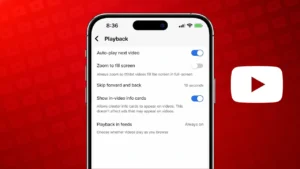
Autoplay on YouTube keeps videos playing one after another without stopping. While it can be convenient, many users prefer to turn it off to avoid wasting time or mobile data.
In this guide, you will learn how to disable autoplay on YouTube across mobile, desktop, and TV devices in a simple and practical way.
Also read: How to Remove All YouTube Subscriptions the Right Way
What Happens When Autoplay Is On
When autoplay is enabled:
- The next video starts automatically
- YouTube keeps suggesting related content
- Your watch time increases without manual control
This can sometimes lead to unnecessary data usage and distractions.
Turn Off Autoplay on YouTube Mobile
If you are using Android or iPhone, follow these steps:
From Video Screen
- Open the YouTube app
- Play any video
- Find the Autoplay toggle on the screen
- Turn it OFF
From App Settings
- Open YouTube
- Tap your profile icon
- Go to Settings
- Tap Autoplay
- Disable Autoplay next video
This will stop automatic playback on your phone.
Turn Off Autoplay on YouTube Desktop
On PC or laptop:
- Open YouTube in your browser
- Play any video
- Look at the right panel above suggested videos
- Find the Autoplay switch
- Turn it OFF
Once disabled, YouTube will wait for your input before playing the next video.
Turn Off Autoplay on YouTube TV
For Smart TV or Android TV users:
- Open the YouTube app on your TV
- Start playing a video
- Navigate to the autoplay option on the screen
- Turn it OFF
Alternatively, you can check settings inside the app to disable autoplay globally.
Disable Autoplay Previews on Home Feed
YouTube also plays preview videos while scrolling on mobile.
To stop that:
- Open YouTube app
- Go to Settings
- Tap General
- Select Playback in feeds
- Choose Off
This will stop videos from auto-playing in the feed.
Benefits of Turning Off Autoplay
Disabling autoplay gives you better control and helps you:
- Save internet data
- Avoid distractions
- Watch only what you choose
- Reduce unnecessary screen time
Also read: How to Find Videos You Have Liked on YouTube Using Any Device
Final Thoughts
Autoplay can be useful, but it is not always necessary. Turning it off on YouTube is quick and works across all devices including mobile, PC, and TV.
If you want more control over your viewing experience, disabling autoplay is a simple but effective step.