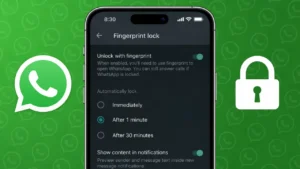
WhatsApp often contains private conversations, important documents, and personal media. Even if your phone is locked, anyone who gets access to it can open WhatsApp instantly. To solve this, WhatsApp offers a built-in app lock feature that uses Face ID or fingerprint authentication.
This guide explains how to enable WhatsApp app lock on both iPhone and Android devices using official settings.
Also read: How to Hide Your WhatsApp Online Status From Specific Contacts
What Is WhatsApp App Lock Feature
WhatsApp app lock is an extra security layer that asks for biometric verification before opening the app. It works independently of your phone’s screen lock and helps prevent unauthorized access to your chats.
Once enabled, WhatsApp will stay locked until Face ID, Touch ID, or fingerprint verification is successful.
Devices That Support WhatsApp App Lock
WhatsApp app lock is available on:
- iPhones that support Face ID or Touch ID
- Android phones with fingerprint sensors
The feature works on the latest versions of WhatsApp.
Also read: How to Lock WhatsApp Chats on iPhone for Better Privacy
Enable Face ID or Touch ID Lock on WhatsApp for iPhone
Follow these steps to secure WhatsApp on iPhone:
- Open WhatsApp
- Tap Settings at the bottom
- Select Privacy
- Tap App Lock
- Turn on Require Face ID or Touch ID
Once enabled, WhatsApp will ask for Face ID every time you open the app.
Set Auto Lock Time on iPhone
You can choose how quickly WhatsApp locks itself:
- Immediately
- After 1 minute
- After 15 minutes
- After 1 hour
This helps you balance security and convenience.
Enable Fingerprint Lock on WhatsApp for Android
Android users can lock WhatsApp using fingerprint authentication.
Steps
- Open WhatsApp
- Tap the three dot menu
- Go to Settings
- Tap Privacy
- Select Fingerprint lock
- Enable Unlock with fingerprint
WhatsApp will now require fingerprint verification before opening.
Notification Privacy on Android
You can also choose whether message content appears in notifications while WhatsApp is locked. Turning this off adds extra privacy.
Also read: How to Clear WhatsApp Call History Step by Step on Android and iPhone
What Happens When WhatsApp Is Locked
When app lock is active:
- Messages and calls still arrive normally
- Notifications may still appear depending on settings
- Opening the app always requires biometric verification
This ensures security without interrupting communication.
Important Things to Know Before Using App Lock
- App lock does not encrypt chats
- It does not replace end to end encryption
- You must re-enable app lock after reinstalling WhatsApp
- Settings apply only to the current device
Also read: Create WhatsApp Stickers Without Installing Any App on Android and iPhone
Why You Should Enable WhatsApp App Lock
People enable WhatsApp app lock to:
- Protect personal messages
- Secure work conversations
- Prevent accidental access by others
- Add an extra privacy layer
It is especially useful if you share your phone or leave it unattended.
Final Thoughts
Using Face ID or fingerprint to lock WhatsApp is one of the easiest ways to improve privacy. Since this feature is built directly into WhatsApp, it is safe, reliable, and simple to use. With just a few taps, you can make sure only you can access your conversations on both iPhone and Android.
If chat privacy matters to you, enabling WhatsApp app lock is a smart and effective step.
Also read: How to Stop WhatsApp From Auto-Downloading Media and Filling Up Your Gallery