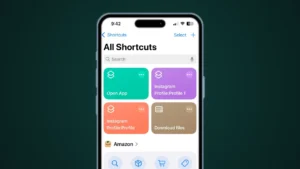
Apple’s Shortcuts app is one of the most powerful tools on iPhone, yet many users barely use it. With automation in iOS Shortcuts, you can make your iPhone perform daily tasks automatically without tapping again and again. From saving battery to managing focus and reminders, automation can quietly handle routine actions in the background.
This guide explains what iOS Shortcuts automation is, how it works, and how you can set it up step by step for daily use.
Also read: How to Transfer Data from Android to iPhone Step by Step Guide for Beginners
What Is Automation in iOS Shortcuts?
Automation in the Shortcuts app allows your iPhone to run actions automatically when a specific condition is met. Instead of manually opening apps or changing settings, your phone does it for you.
For example:
- Turn on Low Power Mode when battery drops below 30 percent
- Enable Focus Mode at bedtime
- Switch off Wi-Fi when you leave home
- Open music when you connect Bluetooth earphones
All this happens using the built-in Shortcuts app on iPhone.
Why Use iOS Shortcuts Automation?
Automation saves time and reduces mental effort. Once set up, it works silently in the background.
Key Benefits
- Saves time on repetitive tasks
- Reduces manual setting changes
- Improves battery and productivity
- Helps build daily routines
- Works without installing third-party apps
If you use an iPhone daily, automation is not optional. It is a productivity upgrade.
Requirements Before You Start
Before creating automation, make sure:
- You are using an iPhone running recent versions of iOS
- The Shortcuts app is installed
- Background App Refresh is enabled for Shortcuts
You do not need an internet connection for most automations.
How to Set Up Automation in iOS Shortcuts
Follow these steps carefully.
Step 1: Open the Shortcuts App
Open the Shortcuts app on your iPhone.
Tap on the Automation tab from the bottom.
Step 2: Create a New Automation
Tap Create Personal Automation.
If you already have automations, tap the plus icon first.
Step 3: Choose a Trigger
Select when the automation should run. Common triggers include:
- Time of Day
- Battery Level
- App Opened or Closed
- Location
- Bluetooth Connection
- Focus Mode
Choose the trigger that matches your daily task.
Step 4: Add Actions
Tap Add Action.
Search for actions like:
- Set Low Power Mode
- Set Focus
- Open App
- Set Volume
- Turn Wi-Fi or Bluetooth On or Off
You can add multiple actions in one automation.
Step 5: Review and Confirm
Tap Next.
Disable Ask Before Running if available.
Confirm by tapping Don’t Ask.
Your automation is now active.
Also read: How to Back Up Your iPhone Without Using iCloud – A Clear Guide
Useful Daily Automation Ideas
Here are practical automation examples that actually help.
Battery Saving Automation
Trigger: Battery Level below 30 percent
Action: Turn on Low Power Mode
Morning Routine
Trigger: Time 7:00 AM
Actions:
- Turn off Do Not Disturb
- Set volume to medium
- Open Weather app
Night Routine
Trigger: Time 11:30 PM
Actions:
- Turn on Focus Mode
- Reduce screen brightness
- Turn off Wi-Fi
Work Focus Automation
Trigger: Focus Mode Work enabled
Actions:
- Open Calendar
- Open Notes
- Enable silent mode
Automation vs Shortcuts
Many users confuse shortcuts and automation.
- Shortcut runs when you tap it
- Automation runs automatically based on conditions
Automation is better for daily routines where manual action is unnecessary.
Common Problems and Solutions
Automation Asking for Permission
Some automations require confirmation for security reasons.
This is normal and cannot always be disabled.
Automation Not Running
Check:
- Focus or battery restrictions
- Background App Refresh
- iPhone battery optimization
Restart your phone if needed.
Privacy and Safety
All automations run locally on your device.
Apple does not upload your automation data to servers.
Shortcuts automation follows Apple’s privacy standards set by Apple.
Also read: How to Get the Old Apple Mail Back on iPhone, iPad, and Mac
Final Thoughts
Automation in iOS Shortcuts is a powerful yet underused feature. Once you set it up correctly, your iPhone starts working for you instead of the other way around. From saving battery to managing daily routines, automation improves efficiency without adding complexity.
If you use an iPhone daily and still change settings manually, you are wasting time. Set up a few automations today and feel the difference.