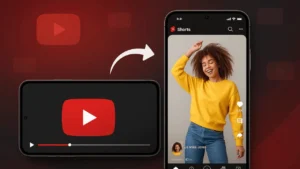
YouTube Shorts are designed for vertical viewing, but sometimes you want to watch them in landscape mode on a bigger, wider screen. Maybe the clip has small text, or you just prefer watching videos horizontally. The good news is that there are a few simple tricks that let you switch Shorts into landscape view on phones, tablets, and even a PC.
This guide explains the easiest methods to watch YouTube Shorts in landscape mode without using any complicated tools.
Also read: How to Use Split Screen and Pop Up Window on Android for True Multitasking
Why YouTube Shorts Stay Vertical by Default
Shorts are made for quick and easy viewing, so YouTube locks them in a vertical format.
But users often want more control, especially when watching longer Shorts or content that looks better horizontally. That is where these simple methods help.
1. Rotate Your Phone Manually
This is the easiest method and works for many Shorts.
How to do it
- Open YouTube Shorts.
- Turn on Auto Rotate from your quick settings.
- Rotate your phone horizontally.
Some Shorts automatically switch to landscape if the creator uploaded a wider video. If not, keep reading for more reliable methods.
2. Watch Shorts Like a Normal YouTube Video
Every Short has a regular YouTube URL. When you open that version of the video, landscape mode works perfectly.
Steps
- Tap the Share button on the Short.
- Tap Copy Link.
- Paste the link in your browser or the YouTube app search bar.
- Open the video in the regular player and rotate your phone.
You will now see the full landscape YouTube player with controls.
3. Use Desktop Mode on Your Phone Browser
Opening Shorts on YouTube’s desktop site forces the video into a wide layout.
How
- Open YouTube in Chrome or Safari.
- Tap the three dots and enable Desktop Site.
- Search for the Short and play it.
- Rotate your phone horizontally.
The Short appears as a standard widescreen video.
4. Watch YouTube Shorts in Landscape Mode on a PC
This trick is the most effective because PC browsers do not restrict Shorts to vertical view.
How to do it
- Open YouTube on your computer.
- Search for the Short you want to watch.
- Click the video.
- Press F or click Fullscreen.
YouTube automatically adjusts the video to landscape mode if the original upload supports it.
5. Check if the Creator Uploaded the Short in Horizontal Format
Some YouTubers upload Shorts recorded in landscape. In that case, YouTube will display them horizontally even in the Shorts player.
To check this:
- Rotate your phone
- If the content was originally wide, it will fill the screen
If not, the video will stay vertical.
Also read: How to Make Your Android Phone Run Smooth for Years With Simple Maintenance Tips
Final Thoughts
YouTube Shorts are designed for vertical viewing, but you still have several ways to watch them in landscape mode when needed. Whether you rotate your device, open the regular YouTube player, switch to desktop mode, or view the video on a PC, each method gives you more control over how you enjoy Shorts. Try different methods and stick with the one that feels the most comfortable for your device.