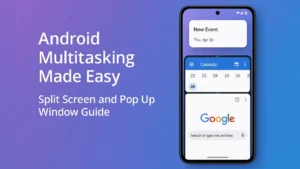
If you’ve ever wished you could watch a video while replying to messages, or read notes while filling a form, Android already gives you the tools to do that. You don’t need any third party apps.
Features like Split Screen and Pop Up Window make real multitasking easy, especially when you know how to use them properly.
Let’s go through everything in a simple way, like a friend showing you how to make your phone smarter.
Also read: How to Block Unwanted Calls and Spam Messages Using Built-in Android Features
1. What Split Screen Actually Does
Split Screen lets you use two apps at the same time, one on the top half and one on the bottom half.
This is perfect for:
- Watching YouTube while texting
- Reading notes while typing in Google Docs
- Browsing the web while checking email
- Comparing two apps side by side
You basically turn your phone into a small dual window computer.
2. How to Turn On Split Screen
Different Android versions place the option in slightly different areas, but the process is almost the same.
Try this simple method:
- Open the first app you want to use
- Go to Recent Apps
- Tap the app icon on top of the app window
- Select Split Screen
- Choose your second app from the list
Now both apps stay open together.
3. Adjusting the Split Screen Size
You don’t have to keep both apps at the same size.
There is a small divider bar in the middle that you can drag up or down.
You can:
- Give more space to the top app
- Give more space to the bottom app
- Make one app bigger and one smaller
- Even close one app by dragging the bar fully to one side
It’s flexible and easy to control.
4. What Pop Up Window Can Do
Pop Up Window is like a mini floating window that sits on top of other apps.
Imagine watching a video in a small bubble while doing something else in full screen.
You can use it for:
- YouTube
- Messages
- Notes
- Maps
- Chrome
- Music controls
It’s perfect when you want one app always visible without covering the whole screen.
5. How to Enable Pop Up Window
This feature is available on most Samsung, Xiaomi, and other Android phones.
Here’s the common method:
- Open Recent Apps
- Tap the app icon
- Select Open in Pop Up View or Open in Floating Window
Now the app becomes a small floating box that you can move around like a chat bubble.
6. Resize and Move the Pop Up Window
The floating window is fully adjustable.
You can:
- Drag from the corners to resize
- Move it anywhere on the screen
- Make it slightly transparent
- Minimize it into a tiny bubble
It gives you real multitasking without blocking your main screen.
7. When to Use Split Screen vs Pop Up Window
Use Split Screen when:
- You want a big view of two apps
- You need to type and read at the same time
- You are comparing content side by side
Use Pop Up Window when:
- You only need quick access to one app
- You want a floating video or chat bubble
- You want a distraction free main screen
Both features have different strengths.
Use them together and your productivity increases instantly.
8. Close Split Screen or Pop Up Window Easily
Ending them is simple.
To close Split Screen:
- Drag the divider bar fully up or down
To close Pop Up Window:
- Tap the X
or - Drag it to the bottom close area
Takes one second.
Also read: How to Improve Internet Speed on Android Using Built in Tools Only
Final Thoughts
Multitasking on Android becomes easy once you know how to use Split Screen and Pop Up Window properly. These tools help you save time, stay organized, and manage two tasks without constantly switching apps.
Try using them in your daily routine and you’ll see how much smoother your phone workflow becomes.