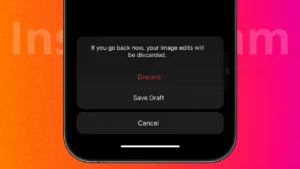
Instagram gives creators the option to save unfinished posts as drafts, which is helpful when you are editing content but do not want to publish it immediately. However, many users later get confused about where drafts are stored or how to remove old ones.
This guide explains how to manage Instagram drafts properly, including how to save them, locate them later, and delete drafts you no longer need.
Also read: How to Disconnect Synced Contacts From Instagram
What Instagram Drafts Are Used For
Drafts are temporary versions of posts that you exit before publishing. They allow you to pause editing and continue later without starting from scratch.
Instagram supports drafts for:
- Regular photo and video posts
- Reels
- Stories
Drafts are saved only on the device where they were created and are not linked to your account across devices.
How to Save a Draft on Instagram
Instagram only saves a draft if you leave the editor correctly.
Steps to Save a Draft
- Open the Instagram app
- Tap the plus icon to create content
- Choose Post, Reel, or Story
- Add media and make edits
- Tap the back arrow
- Select Save Draft
If you exit without saving, the draft will be discarded.
Also read: Instagram Post Archive Explained: How It Works and When You Should Use It
How to Find Your Saved Drafts on Instagram
Drafts are grouped by content type, so their location depends on what you were creating.
Access Drafts for Posts
- Tap the plus icon
- Select Post
- Tap Drafts at the top
Access Drafts for Reels
- Tap the plus icon
- Select Reel
- Open Drafts
Access Drafts for Stories
- Tap your profile picture to add a Story
- Tap Drafts
Story drafts may disappear after a few days if not posted.
How to Delete Instagram Drafts
If drafts are no longer needed, you can remove them manually.
Delete Post or Reel Drafts
- Open the Drafts section
- Tap Manage
- Select the drafts you want to remove
- Tap Delete
Delete Story Drafts
- Open Story drafts
- Long press the draft
- Tap Delete
Once deleted, drafts cannot be restored.
Also read: How to Add Tags to an Instagram Story After It Is Already Posted
Reasons Instagram Drafts Might Disappear
Drafts can be lost due to:
- App reinstallation
- Logging out of your account
- Clearing app storage
- Phone system cleanup
- App updates in rare cases
To avoid losing important drafts, keep original photos and videos saved in your gallery.
Tips to Keep Drafts Safe
- Avoid clearing app data
- Do not uninstall Instagram until drafts are published
- Save edited media separately
- Check drafts regularly
These habits help prevent accidental loss.
Also read: How To Remove Sent Messages On Instagram Before Others See Them
Final Thoughts
Instagram drafts make content planning easier, but they require proper handling. Once you know how to save, access, and delete drafts correctly, managing unfinished content becomes simple. Just remember that drafts stay on your device, so take care before making major app changes.