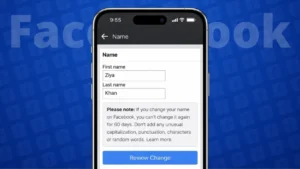
Your Facebook profile represents how people find and recognize you online. If your name is misspelled, outdated, or no longer matches your identity, Facebook allows you to update both your profile name and username through official settings.
This guide explains how to edit your Facebook name and username correctly, along with important rules you should know before making changes.
Also read: How to Edit or Remove Your Last Name on Facebook Profile
Understanding Facebook Name vs Username
Facebook uses two different identifiers on profiles.
- Profile Name
This is the name shown on your timeline, comments, posts, and search results. - Username
This is the unique address for your profile, such as facebook.com/yourusername.
Changing one does not automatically change the other.
How to Change Your Facebook Profile Name
You can change your name using the Facebook app or a web browser.
On Mobile App (Android and iPhone)
- Open the Facebook app
- Tap the menu icon
- Go to Settings and privacy
- Open Settings
- Tap Personal details
- Select Name
- Enter your updated first and last name
- Review and confirm
Facebook may take some time to review the change.
On Desktop Browser
- Open Facebook in your browser
- Click your profile picture
- Select Settings and privacy
- Open Settings
- Go to Personal details
- Click Name
- Enter your new name
- Save changes
Also read: How to Delete Someone From Your Snapchat Friends List (2 Simple Ways)
Facebook Name Change Guidelines
Before changing your name, keep these rules in mind:
- You can change your name only once every 60 days
- Nicknames, symbols, and numbers are not allowed
- Your name should match how you are known in real life
If Facebook flags your name, it may ask for identity confirmation.
How to Change Your Facebook Username
Your username affects your profile link and visibility.
Steps to Change Username
- Open Facebook
- Go to Settings and privacy
- Open Settings
- Tap Personal details
- Select Username
- Enter a new available username
- Save your changes
If the username is already taken, Facebook will ask you to choose another one.
Also read: How to Schedule Posts on Instagram – Simple and Complete Guide
What Changes After Updating Username
- Your profile link changes immediately
- Old links may no longer work
- Friends and followers remain the same
If you use your profile for work, update the new link wherever needed.
Why People Update Their Facebook Name or Username
Common reasons include:
- Fixing spelling or formatting issues
- Using a professional name
- Updating name after marriage
- Creating a cleaner profile link
Facebook allows flexibility as long as rules are followed.
Also read: How to Update Your Instagram Password Using Mobile or PC
Final Thoughts
Editing your name and username on Facebook is simple when done through official settings. Just remember that name changes are limited, while usernames must be unique. Keeping your profile information accurate helps others find and recognize you easily.