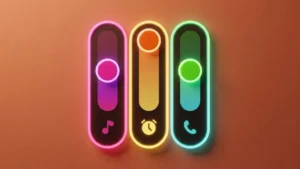
Your Android phone’s volume panel is something you probably use several times a day, whether you’re adjusting music, watching videos, or changing notification sounds. Although the default volume slider gets the job done, its design can feel a little plain if you enjoy customizing your phone.
That’s where a Neon RGB volume customization app can make a difference. It lets you give the volume panel a more colorful appearance with glowing effects, RGB-inspired colors, and different slider styles. Instead of sticking with the standard look, you can choose a design that better matches your personality and your phone’s theme.
Let’s explore what these apps offer, how to set one up, and what to consider before using one.
Also read: Batix Charging Photo: Customize Your Android Charging Screen With Photos and Animations
What Is a Neon RGB Volume Customization App?
A Neon RGB volume customization app is designed to change how the volume controls look on your Android phone. Depending on the app, you may be able to replace the ordinary volume panel with vibrant colors, neon-style borders, glowing sliders, and animated visual effects.
The main purpose is personalization rather than changing how your phone handles sound. You can give a frequently used part of the interface a different appearance without having to change your entire home screen or install a completely new launcher.
The available designs and customization options vary from one app to another, so it is worth exploring the settings to see what your chosen app supports.
Why Customize Your Android Volume Panel?
Android offers plenty of ways to personalize a phone, from changing wallpapers and icons to installing custom launchers. The volume panel is another small detail you can adjust to make your device feel more like your own.
Here are a few reasons to try a volume customization app:
- A fresh appearance: Replace a plain slider with a more stylish design.
- Colorful effects: Experiment with neon shades and RGB-inspired combinations.
- A matching theme: Choose colors that complement your wallpaper and icons.
- More control over the design: Adjust available visual settings to suit your preferences.
- A different everyday experience: Give a familiar interface element a distinctive look.
If you enjoy trying new Android themes, customizing the volume panel is an easy way to add another personal touch.
Key Features to Look For
The exact features depend on the app you install, but these are some of the main options to look for when choosing a neon-style volume panel.
1. Neon Volume Slider Designs
One of the biggest attractions is the neon-inspired appearance. Instead of a basic slider, you may find designs with glowing outlines, bright highlights, and colorful accents.
These styles can give the volume panel a more modern look, especially if you prefer darker wallpapers or gaming-inspired themes.
2. RGB Color Customization
Color options make it easier to create a design that fits your phone. Some apps offer different shades and combinations, allowing you to experiment with colors such as blue, purple, red, and green.
You can choose a single color for a cleaner appearance or combine several shades for a more vibrant RGB effect, depending on the options available.
3. Adjustable Volume Panel Layout
A good customization app may let you change different aspects of the panel’s appearance. Depending on its settings, you might be able to adjust:
- Slider color and style
- Panel size
- On-screen position
- Theme or visual design
- Other available appearance settings
These options can help you find a layout that looks attractive without covering too much of your screen.
4. Animated Visual Effects
Some volume customization apps include animations that appear when you press the volume buttons. These effects can make the panel feel more dynamic than the standard Android design.
However, animation styles and smoothness vary between apps and devices. If you prefer a simple interface, look for an option to reduce or disable effects where available.
5. Simple Setup Process
You generally do not need advanced technical knowledge to get started. Most customization apps guide you through selecting a design and enabling the features they need.
Depending on how the app works, you may need to grant permissions or enable an accessibility service so it can display a customized panel. Always read the permission descriptions before proceeding.
How to Use a Neon RGB Volume Customization App
Once you have chosen an app, setting it up is usually straightforward. Follow these general steps:
- Install the app: Find the app on the Google Play Store and install it.
- Open the app: Launch it and explore the available volume panel designs.
- Review the permissions: Enable only the access needed for the features you want to use.
- Choose a style: Select a neon theme, color combination, or slider design.
- Adjust the appearance: Change the available colors, size, position, or other settings.
- Apply your changes: Save or activate the design using the app’s instructions.
- Test the volume buttons: Press a volume button to check whether the customized panel appears as expected.
The exact steps can differ depending on your Android version and the app’s design. If the new panel does not appear, revisit the app’s settings and check whether its required permissions or background access have been disabled.
Does It Work on Every Android Phone?
Compatibility can vary. Android manufacturers often customize the system interface, so a volume panel app may behave differently on Samsung Galaxy, Xiaomi, Redmi, OnePlus, Motorola, and other devices.
Some phones may restrict how third-party apps display overlays or interact with system controls. Battery-saving settings can also affect apps that need to remain active to show their customized panels.
Before relying on a particular app, check its Play Store listing, compatibility information, and recent user reviews. Keep in mind that changing the panel’s appearance does not necessarily replace every volume control throughout Android.
Performance and Battery Usage
A volume customization app may run without noticeable issues on many devices, but its impact depends on how it works. A simple design with limited animations may use fewer resources than one with frequent visual effects or additional background features.
If you notice lag, unexpected battery drain, or other problems after installation, try switching to a simpler theme or disabling unnecessary effects. You can also check your phone’s battery settings to see whether the app is using more power than expected.
The goal is to improve your phone’s appearance without making everyday use less comfortable.
Tips for Getting the Best Neon Look
A few small adjustments can help your customized volume panel look more polished.
- Try a dark wallpaper: Bright neon colors often stand out more clearly against darker backgrounds.
- Keep your colors consistent: Choose shades that complement your wallpaper, icons, and lock screen.
- Avoid too many effects: A simpler design can look cleaner and make the volume panel easier to read.
- Check the panel’s position: If the app allows repositioning, choose a location that does not block important content.
- Test it while using different apps: Make sure the panel remains convenient when listening to music, watching videos, or playing games.
You do not need the brightest design to get a good result. A small amount of color can be enough to give your phone a distinctive appearance.
Safety and Privacy Tips
Before installing any app that changes your Android interface, take a moment to check its permissions and reputation.
- Download it from a trusted source, such as the Google Play Store.
- Read recent reviews to identify recurring complaints or compatibility issues.
- Check why the app requests overlay or accessibility access, if applicable.
- Avoid granting permissions that do not appear necessary for its advertised features.
- Uninstall the app if it behaves unexpectedly or requests suspicious access.
Accessibility permissions can provide broad access to information displayed on your screen or allow certain interactions. Grant them only when you understand why the app needs them and feel comfortable with that access.
Is a Neon RGB Volume App Worth Trying?
If you like customizing your Android phone, a neon RGB volume app can be a fun addition. It focuses on one small part of the interface, so you can experiment with a new look without redesigning your entire device.
It may be particularly appealing to users who enjoy RGB-inspired themes, colorful interfaces, and gaming-style visuals. On the other hand, if you prefer a minimal design or do not want to grant additional permissions, the default volume panel may be the better choice.
Before choosing an app, consider its customization options, compatibility, permission requirements, and how well it performs on your phone.
Optional App to Try
If you want to explore a neon-style volume panel, you can check out this Android app on Google Play:
RGB Volume Panel – View on Google Play
Review the app’s current features, permissions, and compatibility before installing it. The available options may differ depending on your device and the version of the app.
Also read: Alpha Hybrid Launcher 4D: A Simple Way to Refresh Your Android Home Screen
Final Thoughts
Customizing your Android volume panel is a simple way to make your phone feel more personal. With neon-inspired designs, RGB colors, and visual effects, a volume customization app can replace a familiar interface with something that better matches your style.
Choose a design that is easy to see and comfortable to use, rather than focusing only on flashy effects. Most importantly, check permissions and compatibility before enabling the app’s features.
If you enjoy experimenting with Android customization, a neon RGB volume panel is worth exploring as one more way to make your device your own.