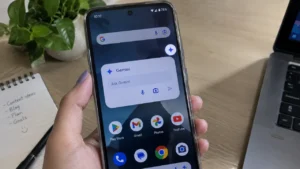
Using Gemini on Android used to mean giving the AI assistant most of your attention on the screen. You could ask a question, get an answer and then return to whatever you were doing.
Google is now making that experience more flexible.
A new floating bubble option for Gemini allows the assistant to stay available while you continue using other apps. Instead of keeping Gemini open across the screen, you can minimize it into a small floating bubble and move on with your work.
This is particularly useful when you want to ask Gemini something while browsing the web, checking messages, reading an email or working inside another app.
Here’s how the Gemini floating bubble works and how you can use it on your Android phone.
Also read: How to Use Google Find Hub to Remember Where You Put Your Things
What Is the Gemini Floating Bubble?
The Gemini floating bubble is a minimized version of the Gemini assistant that stays on top of your other apps.
When you start using Gemini and then minimize it, the full-screen Gemini interface disappears and is replaced by a small floating bubble.
You can then continue using your phone normally.
When you need Gemini again, simply tap the bubble to bring the assistant back.
You can also drag the bubble around the screen or dismiss it when you’re finished.
The idea is fairly simple: Gemini doesn’t have to take over your screen every time you want to use it.
Why the Floating Bubble Is Useful
The biggest advantage is multitasking.
Imagine you’re reading an article and come across something you don’t understand. Instead of leaving the page completely, you can open Gemini, ask about it and minimize Gemini again.
You can do something similar while:
- Reading a webpage
- Checking an email
- Using Google Maps
- Looking at a photo
- Writing a message
- Shopping online
- Taking notes
- Working on a document
- Browsing social media
It makes Gemini feel more like a background assistant instead of an app that you have to open and close repeatedly.
How to Minimize Gemini Into a Floating Bubble
The exact interface can vary slightly depending on your Android phone and the version of Gemini you’re using.
On a supported device:
1. Open Gemini
Launch the Gemini app on your Android phone.
You can also start Gemini using the normal Gemini gesture or shortcut available on your device.
2. Start a Gemini Conversation
Ask Gemini your question or give it the task you want it to help with.
For example, you could ask:
“Explain this topic in simple words.”
Or:
“Give me five ideas for a weekend trip.”
3. Look for the Minimize Option
When Gemini is open, look for the Minimize option in the Gemini interface.
Tap it when you want to return to the app you were using.
4. Continue Using Your Phone
Gemini will shrink into a small floating bubble.
You can now open another app and continue what you were doing.
The bubble remains available on the screen until you reopen or dismiss it.
How to Open Gemini Again From the Bubble
When you need Gemini again, you don’t have to start a new conversation.
Simply tap the floating Gemini bubble.
The assistant interface will appear again, allowing you to continue the conversation.
This is especially convenient for tasks where you need several short interactions with Gemini rather than one long question.
You Can Move the Gemini Bubble
The floating bubble doesn’t have to stay in one fixed position.
If it is covering a button or part of the screen, you can drag it toward another edge.
This is useful when you’re reading or watching something and don’t want the bubble sitting directly over important content.
When you’re done with Gemini, you can also dismiss the bubble instead of leaving it on the screen.
What Can You Use Gemini For While Multitasking?
There are plenty of everyday situations where this can save time.
Understanding Something You’re Reading
If you’re reading an article and don’t understand a technical term, you can use Gemini for a quick explanation and then return to the article.
Writing and Rewriting
You can use Gemini to help rewrite a sentence, create a short message or suggest a better way to explain something.
Quick Calculations
Need to calculate something while shopping or comparing prices?
You can ask Gemini without completely leaving the app you’re using.
Getting Ideas
You can keep Gemini available while planning a trip, creating a shopping list or thinking about content ideas.
Understanding Images
If you’re working with an image and need help understanding something in it, Gemini can also be useful for questions about the content you’re viewing, depending on the features available on your device.
Gemini Floating Bubble vs Full-Screen Gemini
The two modes are useful for different situations.
Full-screen Gemini is better when you’re having a longer conversation or working on a complicated task.
Floating Gemini is better when you only need quick assistance while doing something else.
For example, if you’re asking Gemini to help research a topic, the full-screen interface may be more comfortable.
But if you simply want to ask a question while browsing another app, the floating bubble makes more sense.
What If the Gemini Bubble Option Is Missing?
Don’t worry if you don’t see the option yet.
Google is rolling out the feature gradually, and availability can depend on the Gemini app version, Android version, device and account. The initial rollout of the minimized floating-bubble experience began in September 2026.
Try these steps first.
Update Gemini
Open the Google Play Store and check whether an update is available for Gemini.
Update Android
Go to your phone’s software-update section and check for a newer Android version.
The exact location depends on the manufacturer.
Restart Your Phone
After installing updates, restarting the phone can sometimes help newly enabled features appear.
Wait for the Rollout
If everything is updated and the feature still isn’t there, it may simply not have reached your account or device yet.
Google often releases new features gradually rather than enabling them for everyone at exactly the same time.
Does It Work on Every Android Phone?
Not necessarily.
Gemini is available across a wide range of Android phones, but individual features can have different device, software or regional requirements.
Google’s recent Android feature updates are also being distributed across the wider Android ecosystem rather than being limited to one specific phone model.
So the safest approach is to check whether the option appears in your own Gemini app instead of assuming that every Android phone has it.
A Few Things to Keep in Mind
A floating assistant can be convenient, but you don’t necessarily need it running all the time.
If you’re not using Gemini, dismiss the bubble.
Also remember that Gemini may require internet access for many tasks, and the features available to you can depend on your account, device and region.
If you’re using Gemini with personal or sensitive information, it’s also worth reviewing the privacy and activity settings associated with your Google account.
Also read: How to Use App Pinning on Android to Protect Your Private Apps and Photos
Final Thoughts
The Gemini floating bubble is a small change, but it makes Google’s AI assistant considerably easier to use during everyday multitasking.
Instead of opening Gemini, getting your answer and completely leaving the assistant, you can minimize it and keep the conversation within easy reach.
For people who frequently switch between apps, this could become one of those Android features that saves a surprising amount of time.
If the Minimize option is already available in your Gemini app, give it a try. Once you’re used to having Gemini available as a floating bubble, going back to a full-screen assistant every time can feel unnecessarily slow.