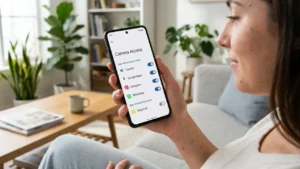
Your Android phone’s camera is one of the most sensitive parts of your device. While most apps use camera access for legitimate reasons, it’s always a good idea to know which apps can use it and how to manage those permissions.
Thankfully, Android includes built-in privacy features that make it easy to see which apps have access to your camera and remove permissions you no longer trust.
Also read: How to Turn Off Ads on Your Android Phone (Safe Methods That Actually Work)
Why Should You Check Camera Access?
Some apps request camera permission even when they don’t actually need it. Reviewing these permissions regularly helps you:
- Protect your privacy
- Prevent unauthorized camera access
- Improve device security
- Control which apps can use your camera
How to See Which Apps Have Camera Permission
Follow these simple steps:
- Open Settings.
- Tap Privacy & Security (or Security & Privacy).
- Select Permission Manager.
- Tap Camera.
You’ll now see a list of apps that currently have camera permission.
Check Permission Status
Android usually divides apps into categories such as:
- Allowed all the time
- Allowed only while using the app
- Ask every time
- Not allowed
This makes it easy to identify apps that have unnecessary access.
Remove Camera Access from Any App
If you don’t want an app using your camera:
- Open the Camera permission list.
- Tap the app you want to manage.
- Select Don’t Allow.
The app will no longer be able to access your camera unless you grant permission again.
Use the Privacy Dashboard
Many Android phones include a Privacy Dashboard.
To access it:
- Open Settings.
- Tap Privacy.
- Select Privacy Dashboard.
- Open Camera.
Here you can see which apps recently accessed your camera and when they used it.
Watch for the Camera Indicator
Modern Android versions display a small green camera indicator whenever an app is actively using your camera.
If you notice the indicator appearing unexpectedly, you should immediately check which app is responsible.
Tips to Improve Privacy
For better security:
- Review camera permissions every few weeks.
- Only allow trusted apps to use the camera.
- Remove permissions from apps you no longer use.
- Keep Android updated with the latest security patches.
- Download apps only from trusted sources.
Frequently Asked Questions
Can an app use my camera without permission?
No. Android requires camera permission before an app can access your camera.
What happens if I deny camera permission?
The app won’t be able to use your camera until you allow access again.
Does removing camera permission delete the app?
No. It simply prevents the app from accessing your camera.
Also read: How to Hide Apps on Any Android Phone Without Installing Any App
Final Thoughts
Checking camera permissions takes only a minute but can significantly improve your privacy. Android’s built-in Permission Manager and Privacy Dashboard make it easy to monitor camera access and remove permissions from apps you don’t fully trust.
Making it a habit to review permissions regularly helps keep your personal information secure.