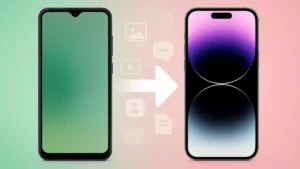
Switching from Android to iPhone is exciting but the biggest concern for most users is how to move their data safely. Whether it is contacts, photos, videos, chats, or apps, you can transfer almost everything with the right method. In this guide, you will learn the easiest and safest ways to transfer data from Android to iPhone without losing anything.
This tutorial works for both new and old iPhones.
Also read: How to Clear Cache Safely on Android Without Losing Data
1. Use Move to iOS App (Official and Easiest Method)
Apple provides an official app called Move to iOS that transfers most of your important data from Android to iPhone. This is the recommended method for beginners.
What you can transfer
- Contacts
- Messages
- Photos and videos
- Calendars
- Google accounts
- WhatsApp chats
- Some app data
Steps to follow
- Turn on your new iPhone and choose Move Data from Android during setup.
- On your Android phone, install Move to iOS from Google Play Store.
- Open the app and allow the required permissions.
- Enter the code shown on your iPhone.
- Choose the data you want to transfer.
- Wait until the transfer completes and finish setting up your iPhone.
Tip: Keep both phones connected to power and WiFi for a smoother transfer.
2. Transfer WhatsApp Chats from Android to iPhone
WhatsApp now supports direct chat transfer.
Steps
- Update WhatsApp on both phones.
- Open WhatsApp on Android and go to Settings > Chats > Transfer Chats to iPhone.
- Scan the QR code displayed on your iPhone.
- Wait while your chats move to the iPhone.
3. Transfer Photos and Videos Using Google Photos
If your media is already backed up in Google Photos, this method is very simple.
How to do it
- On your Android device, sync all photos and videos to Google Photos.
- Install Google Photos on your iPhone.
- Log in with the same Google account.
- Your entire gallery will appear automatically.
4. Transfer Files with Google Drive
If you want to move documents, PDFs, or other files:
- Upload the files to Google Drive using your Android device.
- Install Google Drive on your iPhone.
- Sign in and download your files.
5. Transfer Music Manually
Android music files do not move automatically. You can move them manually.
Steps
- Connect your Android phone to a PC.
- Copy your Music folder.
- Connect your iPhone and open iTunes or Finder.
- Add the music files to iTunes and sync them to your iPhone.
6. Transfer Contacts Through Google Account
If you only need contacts:
- On Android: Go to Settings > Accounts > Google > Sync Contacts.
- On iPhone: Go to Settings > Mail > Accounts > Add Account.
- Sign in with the same Google account.
- Enable Contacts sync.
7. Transfer Data with Third Party Apps (Optional)
Apps like:
- MobileTrans
- AnyTrans
- iCareFone
These tools provide advanced transfer options but may require payment.
Also read: How to Back Up Your iPhone Without Using iCloud – A Clear Guide
Final Thoughts
Transferring data from Android to iPhone is simpler than ever. The best approach for beginners is the official Move to iOS app because it is free and safe. You can use additional methods for WhatsApp chats, photos, documents, and music to make sure everything moves smoothly.
Take your time, follow each step carefully, and you will have your new iPhone set up with all your important data in no time.