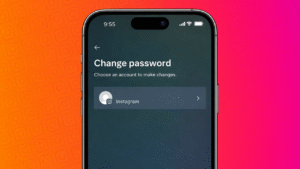
Your Instagram password protects your personal photos, messages, and account activity. If you feel your password is weak, shared, or simply outdated, updating it is a good idea. Instagram provides official options to change your password on both mobile devices and computers.
This guide explains how to update your Instagram password step by step, using only safe and supported methods.
Also read: How to Find the Email Address Linked to Your Instagram Account
Reasons You Might Need to Change Your Instagram Password
People usually change their password when:
- They cannot remember the old one clearly
- They logged in on someone else’s device
- They received unusual login notifications
- They want to strengthen account security
Changing your password does not affect your followers, posts, or chats.
Change Instagram Password From the Mobile App
You can update your password directly from the Instagram app on Android or iPhone.
Steps
- Open the Instagram app
- Tap your profile picture
- Open the menu from the top corner
- Go to Settings and privacy
- Open Accounts Center
- Tap Password and security
- Select Change password
- Enter your current password
- Create and confirm a new password
- Save changes
Your new password becomes active immediately.
Also read: How to Add Pronouns to Your Instagram Profile
Change Instagram Password Using a Desktop Browser
If you prefer using a computer, Instagram allows password changes from the website.
Steps
- Open a browser and visit Instagram
- Log in to your account
- Click your profile icon or menu
- Open Settings
- Go to Accounts Center
- Select Password and security
- Click Change password
- Enter your existing password
- Set a new password
- Save the update
This works on both Windows and macOS systems.
Forgot Your Instagram Password
If you do not remember your current password, you can reset it instead.
How to Reset
- Open Instagram login page
- Tap Forgot password
- Enter your username, email, or phone number
- Follow the reset link sent by Instagram
- Create a new password
This is an official recovery method provided by Instagram.
Also read: How to Manage Drafts on Instagram the Right Way
Tips for Creating a Secure Instagram Password
- Use a mix of letters, numbers, and symbols
- Avoid common words or personal details
- Do not reuse old passwords
- Enable two-step verification for extra protection
A strong password helps prevent unwanted access.
What Happens After You Change Your Password
- Your account data remains unchanged
- You may be logged out from other devices
- Instagram may send a security notification
These steps help keep your account safe.
Also read: How to Disconnect Synced Contacts From Instagram
Final Thoughts
Updating your Instagram password is quick and easy, whether you use a phone or a computer. Instagram offers official tools to change or reset your password without risking your account. Keeping your password strong and updated is one of the best ways to protect your profile and personal data.