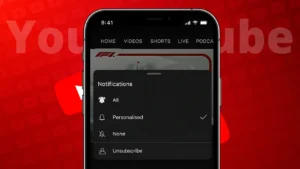
Over time, YouTube subscriptions can pile up. Channels you once enjoyed may no longer match your interests, and your feed can start feeling messy and irrelevant. Many users look for a way to unsubscribe from all YouTube channels at once, but the process is not as straightforward as it sounds.
This guide explains what YouTube officially allows and how you can clean up your subscriptions safely without risking your account.
Also read: How to Find Videos You Have Liked on YouTube Using Any Device
Is There a One-Click Way to Unsubscribe From All Channels
No. YouTube does not provide an official option to unsubscribe from all channels at once. This is intentional, as bulk actions can lead to accidental changes or misuse.
Any website or tool claiming to offer a single-click unsubscribe feature is not using official YouTube methods and should be avoided.
How to Unsubscribe From YouTube Channels Using the Official Method
On Desktop or Laptop
This is the fastest and most reliable way.
- Open YouTube in a web browser
- Make sure you are signed in
- Click Subscriptions from the left menu
- Click Manage at the top
- A full list of subscribed channels will appear
- Click Subscribed next to a channel
- Confirm Unsubscribe
Repeat this for each channel you no longer want to follow.
How to Unsubscribe Using the YouTube Mobile App
If you mostly use YouTube on your phone, you can unsubscribe directly from the app.
- Open the YouTube app
- Tap Subscriptions
- Tap All to view all channels
- Open a channel
- Tap Subscribed
- Confirm the action
This method works on both Android and iPhone, but it requires opening each channel one by one.
How to Speed Up the Cleanup Process
While there is no bulk button, you can make the process faster by:
- Using a desktop browser instead of mobile
- Opening channels in new tabs
- Unsubscribing and closing tabs quickly
This approach saves time and keeps everything within YouTube’s rules.
Why You Should Avoid Third-Party Unsubscribe Tools
Many online tools promise instant mass unsubscribing, but they often require:
- Full Google account access
- Script permissions
- Login through unofficial pages
Using these tools can put your account at risk and may violate YouTube’s terms. For long-term safety, stick to built-in options only.
What Changes After You Unsubscribe
After removing subscriptions:
- Channels disappear from your Subscriptions feed
- Video recommendations gradually update
- Your watch history remains unchanged
- You can resubscribe at any time
Unsubscribing does not affect your comments or likes on past videos.
Alternative Way to Refresh Your YouTube Feed
If you want a completely fresh start without unsubscribing one by one, consider:
- Creating a separate Google account for YouTube
- Using one account for work or learning
- Using another for entertainment
This gives you a clean feed without touching your main account.
Also read: How to View YouTube Shorts in Landscape Mode: A Simple Guide
Final Thoughts
There is no official way to unsubscribe from all YouTube channels at once, but you can still clean up your subscriptions safely using YouTube’s built-in tools. It takes a bit of time, but it keeps your account secure and avoids unnecessary risks. Once you finish, your YouTube feed becomes far more relevant and enjoyable.