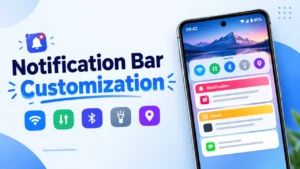
Changing your Android wallpaper or app icons is easy, but have you ever thought about customizing your phone’s status bar and notification panel? These areas appear throughout the day, yet many users continue to use their default designs.
The Notification Bar Customization app offers another way to personalize your Android interface. Depending on your device and the features supported by the app, you may be able to change status bar colors, adjust text styles, use custom notification backgrounds, and access shortcuts for everyday phone settings.
If you enjoy giving your phone a different look without changing the entire launcher, this app may be worth exploring. Here’s what it offers and what you should know before using it.
Also read: Best Android Volume Customization App with Neon RGB Effects
What Is Notification Bar Customization?
Notification Bar Customization, sometimes referred to as Notification Bar Changer or Status Bar Changer, is an Android personalization app focused on the status bar and notification area.
Rather than limiting customization to your home screen, the app provides options for changing the appearance of the interface you use to check alerts, view battery information, and access quick settings.
Depending on the version and your phone’s compatibility, its features may include:
- Changing status bar colors and text styles.
- Selecting a background image for the notification area.
- Adjusting certain status bar information.
- Applying notification themes.
- Accessing shortcuts for commonly used phone functions.
The exact options available may vary, and some features might require additional permissions or may not work on every Android device.
1. Personalize the Android Status Bar
The status bar provides useful information at a glance, including the time, battery level, and network signal. With Notification Bar Customization, you can explore ways to make this small but frequently used part of your phone match your preferred style.
The app lists several status bar customization options, including:
- Status bar color: Choose a different color to complement your wallpaper or overall theme.
- Battery percentage: Adjust the battery percentage display where supported.
- Time format: Change how the time appears using the available settings.
- Carrier name: Customize the displayed mobile carrier name if your device supports it.
- Signal indicators: Adjust certain network information display options where available.
- Text appearance: Experiment with text colors, sizes, and fonts.
These settings can help create a more consistent appearance across your Android interface.
Keep in mind that some status bar elements are controlled directly by Android or your phone manufacturer. As a result, a third-party app may not be able to change every item, even if a similar option appears in its settings.
2. Set a Custom Photo as Your Notification Background
One of the more interesting customization options is the ability to use a personal picture as the notification background.
Instead of relying entirely on the default design, you may be able to select an image from your gallery or choose a background offered within the app.
For example, you could try:
- A favourite travel photograph.
- A nature or landscape image.
- A minimal pattern that matches your wallpaper.
- A personal picture that gives your phone a more individual look.
When choosing an image, pay attention to how notifications appear over it. A busy picture or one with similar colours to the notification text can make messages harder to read.
A simple background with enough contrast can make the notification panel look attractive while keeping important information visible.
3. Access Everyday Phone Settings More Conveniently
Notification Bar Customization also lists shortcuts for common Android functions. These are intended to make frequently used controls easier to reach without opening several separate settings menus.
Depending on your phone and Android version, the listed options may include:
- Wi-Fi and mobile data.
- Bluetooth.
- Silent mode and vibration.
- Screen rotation.
- Flashlight.
- Night Mode.
- Location.
- Mobile hotspot.
- Do Not Disturb.
- Airplane Mode.
- Screenshot.
- Calendar display.
For example, you might want to switch on the flashlight quickly, enable Do Not Disturb before sleeping, or access connectivity settings while travelling.
Having these controls in one place can be convenient, but don’t assume that every shortcut will work on every phone. Android restrictions and manufacturer-specific software can limit what third-party apps are allowed to control.
4. Change the Notification Panel’s Theme
If you enjoy experimenting with Android themes, the app’s notification appearance options may be another feature to try.
You can explore the available theme settings alongside background images and text customization to create a notification panel that better matches your personal style.
This is useful if you want your phone’s interface to feel more coordinated without changing every app icon or installing a completely different launcher.
However, appearance should not come at the expense of readability. Make sure notification text, icons, and other important details remain easy to distinguish from the background.
5. Who Should Try Notification Bar Customization?
The app may appeal to Android users who like adjusting the appearance and layout of their phones beyond the usual wallpaper and icon changes.
It may be worth considering if you:
- Enjoy experimenting with different themes and colours.
- Want to personalise the notification panel with your own images.
- Prefer changing status bar text and colours.
- Frequently use quick settings and shortcuts.
- Want your phone’s interface to look different from its default design.
If you only want to change your wallpaper or standard quick settings, your phone’s built-in customization options may already be enough. A separate app makes more sense if it offers a particular feature that your device doesn’t provide natively.
6. Things to Check Before Installing the App
Customization apps can behave differently depending on the Android version, phone manufacturer, and permissions available to them. Before using Notification Bar Customization, take a moment to check the following.
Check device compatibility: Review the app’s current listing to see whether it supports your Android version and device.
Review requested permissions: Some notification-related features may require access to sensitive information or special system permissions. Only grant permissions you understand and are comfortable with.
Test the features individually: Try one customization at a time so you can identify which options work properly on your phone.
Keep notifications readable: Choose suitable background colours and images so that important alerts remain visible.
Consider built-in alternatives: Android and many phone manufacturers already offer options for changing quick settings, themes, and parts of the interface.
Also, remember that an app’s listed features don’t guarantee that every option will work on your specific device.
Optional: Download Notification Bar Customization
If you want to explore the app yourself, you can check its listing on the Google Play Store.
Check Notification Bar Customization on Google Play
Before installing, review the current app description, compatibility details, permissions, and recent user reviews. This will help you decide whether it offers the customization features you’re looking for.
Also read: Batix Charging Photo: Customize Your Android Charging Screen With Photos and Animations
Final Thoughts
Notification Bar Customization offers Android users another way to make their phones feel more personal. Its listed features cover status bar styling, notification backgrounds, text adjustments, themes, and shortcuts for everyday functions.
The option to use a personal photo as a notification background may be particularly appealing if you enjoy experimenting with your phone’s appearance. The additional status bar settings could also be useful if you want a more coordinated interface.
However, the experience may differ from one device to another. Before relying on a particular feature, check its compatibility with your phone and make sure the required permissions are appropriate.
Overall, if you’re looking for more ways to personalise your Android phone beyond wallpapers and icons, Notification Bar Customization may be worth a look.