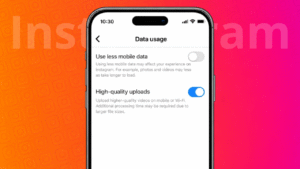
Instagram automatically compresses photos and videos to save data. Because of this, many users notice a drop in quality after uploading. If you want your posts, stories, and reels to look sharper, you need to enable Instagram’s high quality upload setting. This guide explains how to turn it on and what you should know before using it.
Also read: How to Set Up and Use Saved Replies on Instagram for Faster Messaging
What Are High Quality Uploads on Instagram
High quality uploads allow Instagram to process your photos and videos at a higher resolution. When this option is enabled, the app uses more data to upload media with better clarity and fewer compression issues.
This setting is especially useful if you regularly post:
- Reels
- High resolution photos
- Videos with fine details
- Professional or creator content
How to Turn On High Quality Uploads in Instagram
Follow these steps on Android or iPhone.
- Open the Instagram app
- Go to your profile
- Tap the menu icon in the top right corner
- Open Settings and privacy
- Scroll down and tap Data usage and media quality
- Turn on Upload at highest quality
Once enabled, Instagram will upload media in better quality when you post.
Also read: How to Update Your Instagram Password Using Mobile or PC
Does High Quality Upload Use More Internet Data
Yes. Uploading in high quality uses more mobile data compared to standard uploads. If you have a limited data plan, it is better to upload content using Wi Fi.
Instagram may still apply some compression, but the results are noticeably better when this setting is active.
When High Quality Uploads Work Best
This feature works best when:
- Your internet connection is stable
- The original photo or video is already high resolution
- You upload content directly from your camera instead of screenshots
Poor lighting or low resolution files will not improve much even with this setting enabled.
Also read: How to Find the Email Address Linked to Your Instagram Account
Common Reasons Upload Quality Still Looks Low
If your uploads still appear blurry, check these points:
- Your original video resolution is low
- The video aspect ratio is incorrect
- The file size is too small
- Internet connection was unstable during upload
Fixing these issues along with enabling high quality uploads usually improves results.
Should You Keep High Quality Uploads Turned On
If you care about content clarity, the answer is yes. Creators, businesses, and users who post frequently benefit the most. Casual users who upload occasionally can turn it on only when needed.
Also read: How to Add Pronouns to Your Instagram Profile
Final Thoughts
Turning on high quality uploads in Instagram is one of the easiest ways to improve how your content looks. The setting is hidden inside data options, so many users miss it. Once enabled, your photos and videos appear sharper, clearer, and more professional, especially when viewed on larger screens.
If visual quality matters to you, this setting is worth using.