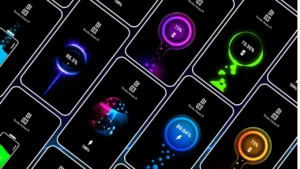
Custom charging animations add a fun and personalized visual effect to your Android phone when you plug it in to charge. Instead of seeing the default battery icon, you can display animated visuals, color effects, or even cool graphics that make charging more engaging.
In this guide, you will learn what custom charging animations are, how they work, what permissions they require, and how to safely set them up on your Android device.
Also read: How to Set Transparent Wallpaper on Android and iOS: A Step by Step Guide
What Is a Custom Charging Animation
A custom charging animation is a visual effect that shows on your phone screen whenever you connect it to a charger. Rather than the default static battery icon, your display can show:
- Animated graphics
- Colorful effects
- Progress bars with cool designs
- Themed animations based on your preference
These animations are purely visual enhancements and do not affect your phone’s battery life or performance.
How Charging Animation Apps Work
Charging animation apps work by listening to your phone’s charging status and automatically displaying an animation overlay when power is connected.
They do not replace the system battery indicator but show on top of it while charging.
To run properly, these apps may request the following permissions:
Required Permissions
- Display over other apps
This allows the animation to appear on top of the lock screen or other interfaces when charging. - Battery status access
To detect when the phone is connected to a charger. - Notification access (optional)
Some animations use notification access to trigger effects more reliably.
These permissions are standard for apps that show overlays or animated visuals on your screen.
Important Safety Notes
- Only install charging animation apps from the Google Play Store or trusted official sources.
- Do not grant permissions that are unrelated to the animation function (for example contacts or messages access).
- Always check the app’s reviews and ratings before installing.
- If an app asks for sensitive permissions that seem unnecessary, avoid granting them.
Following these points ensures your device remains secure.
Step by Step Guide to Set Custom Charging Animation on Android
Here are the general steps that apply to most charging animation apps:
1. Download a Trusted Charging Animation App
Go to the Google Play Store and install a charging animation app you prefer.
(We have a recommended app below where you can explore animation effects.)
2. Open the App and Grant Permissions
When you open the app for the first time:
- Allow the app to display over other apps
- Allow it to access battery status
These permissions are required for the animation to work while the phone is charging.
3. Choose Your Favorite Animation Style
Most apps provide multiple styles such as:
- Glow rings
- Particles
- Text effects
- Animated icons
- Colorful progress bars
Select the animation you like.
4. Test the Animation
Once you have enabled your chosen style:
- Plug your charger into the phone
- Wait for the animation to appear
- If needed, adjust settings like animation speed, color, or size
Recommended Charging Animation App (Optional)
Animated Charging Effects & Custom Animation App
Google Play Store Link:
https://play.google.com/store/apps/details?id=com.mobilefastcharger.chargingshow.flashing.batterycharginganimationscreen.charginganimationeffects.chargingapp&hl=en_IN
This app allows you to explore various charging effects and animations that show up when your phone begins charging. It uses standard permissions required for overlay and battery detection, and lets you choose from visual effects without affecting core phone functions.
You can try this app if you want a simple selection of animations to personalize your charging screen. Always review the app’s permissions, ratings, and user feedback before enabling features.
Tips for Best Results
- Choose animations that are not too bright if you prefer battery saving.
- Avoid animations with heavy graphics if your phone struggles with performance during charging.
- You can toggle animations on or off quickly from within the app settings.
These small adjustments can help you balance looks and usability.
Also read: How to Use Charging Animation App on Android (Complete Step-by-Step Guide)
Final Thoughts
Setting a custom charging animation on Android is a fun and easy way to personalize your device. By using trusted apps from the Google Play Store, granting only necessary permissions, and choosing animations that match your style, you can enhance the charging experience without compromising security or performance.
Always be mindful of the permissions you grant, and review user feedback to ensure the app works the way you expect. With the right setup, your phone can show stylish animations every time you plug it in, adding a fresh look to an everyday action.